Rich Text Editor
A Rich Text Editor (RTE) is a component that enables users to edit and format text content in a WYSIWYG (What You See Is What You Get) manner. It provides an interface similar to word processors, allowing users to style and structure their content directly within a web application.
Features
Common features of a Rich Text Editor include:
Headings and paragraphs
Bullet points and numbered lists
Insert images using Media Selector
Text formatting (bold, italic, underline, strikethrough)
Text Color
Remove Text formatting
Line Breaks
Links
Text alignment options
Table creation and management
Details Component
Copy and paste functionality
Undo/redo operations
Usage
RTE is available to edit the content in many places in the application like Content Fields, Titles, etc.
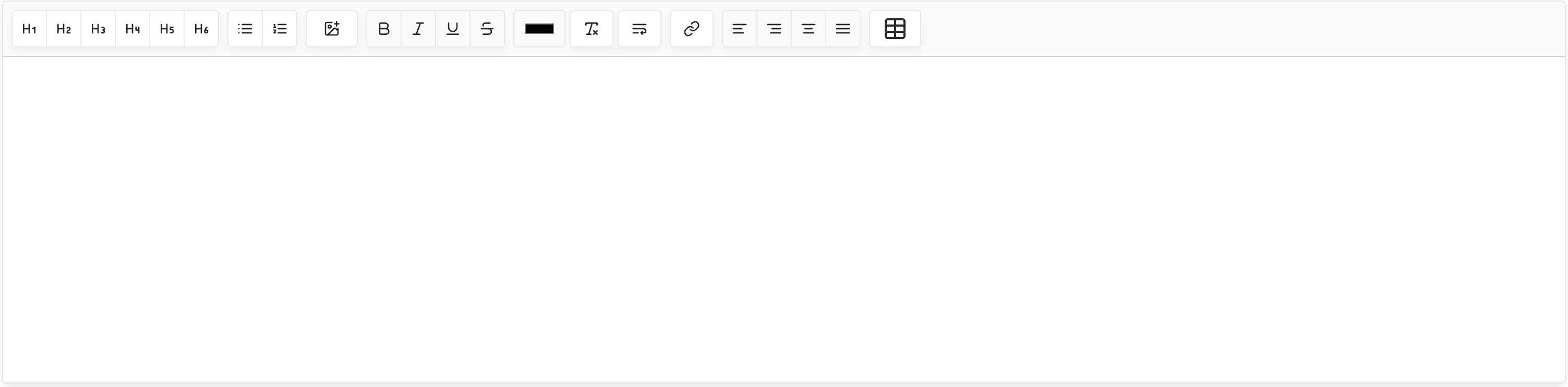
RTE consists of two parts:
Toolbar
Editor
We will understand the part in more detail in the following sections.
Toolbar
The toolbar is a set of buttons that allow users to perform various actions on the content.
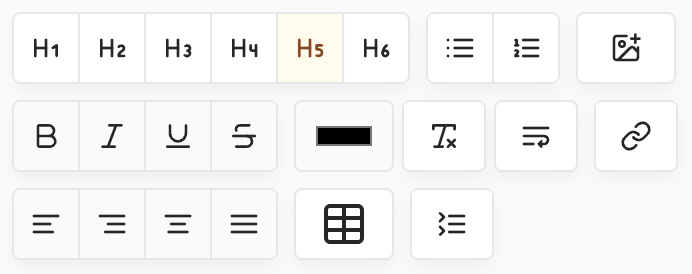
As shown in the image above, multiple features are available in the toolbar these features are described below in Left to Right order.
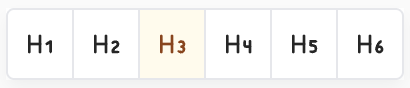
Heading:
H1, H2, H3, H4, H5, H6 heading levels you can use to create headings in your content.
Bullet points and numbered lists
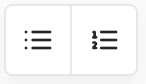
Use bullet points and numbered lists to create lists in your content.
Insert images
Use the media selector to insert images in your content. To open the media selector, click on the image icon.
Text formatting
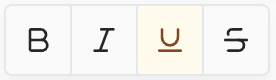
Use the text formatting options to format your content; you can apply bold, italic, underline, strikethrough using the toggle buttons.
Text Color
Use the text color options to change the color of your content.
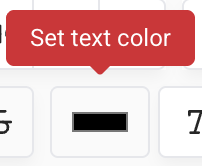
Select the text and then click on the color icon to change the color of the selected text.
Remove Text formatting
Use the remove text formatting option to remove the formatting of your content.
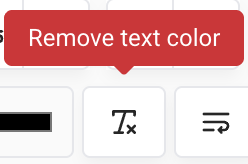
Select the text and then click on the remove formatting icon to remove the formatting of the selected text.
Line Breaks
Use the line breaks option to insert line breaks in your content. Pressing entering will insert a paragraph to the next line, use this line break (br) button to insert a line break in the same paragraph.
Links
Use the link option to insert links in your content.
By clicking on the link icon, you can create a link in your content using the link creation form, you can also edit the link by clicking on the link icon.
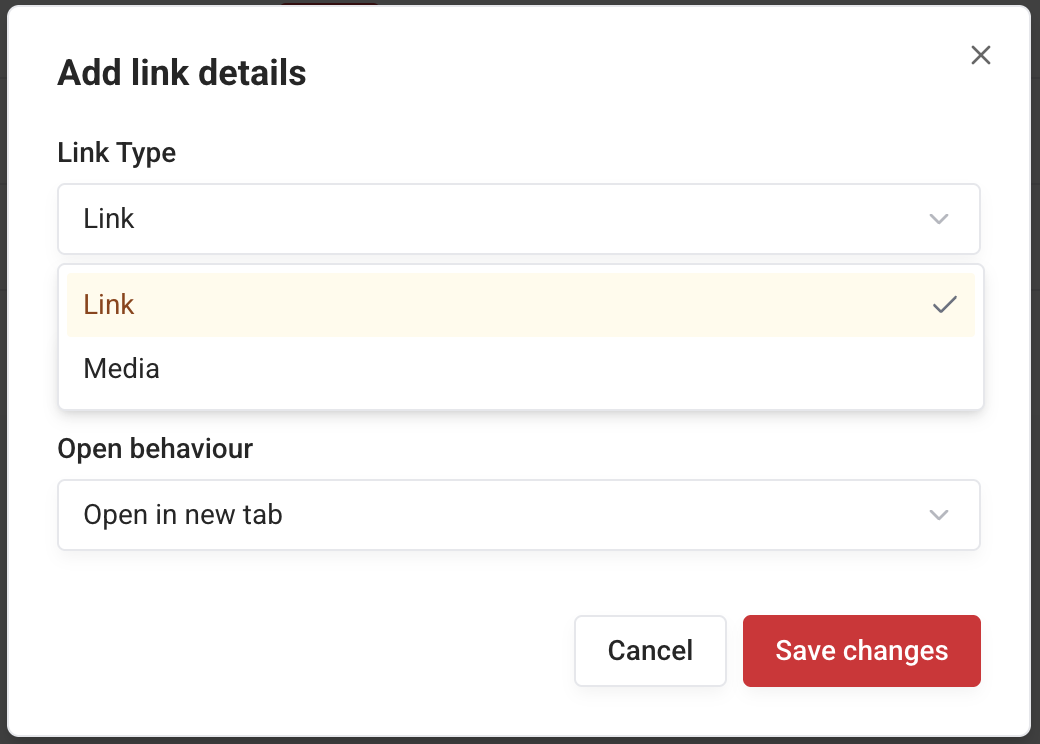
Link Type
Two link types are available:
Link: A field to enter the URL of the link will appear.
Media: A field to select the media will appear (Refer to Media Selector for more details on the media selector).
Open Behavior
You can select the open behavior of the link from Open Behavior drop down.
Available options are:
Open in a new tab
Open in the same tab
Text alignment
Use the text alignment options to align your content.
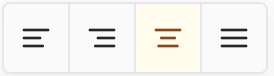
You can align your content to the left, center, or right by selecting the text and toggling the alignment buttons.
Table
Use the table option to create tables in your content.
You can create tables by pressing the table icon and then selecting the Insert Table option from the table menu.
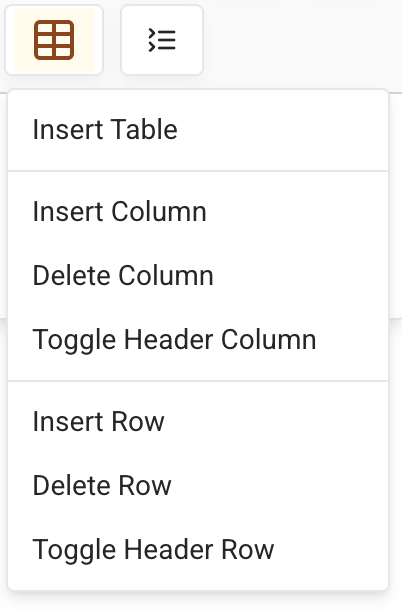
Other options like Insert Row, Insert Column, Delete Row, Delete Column, Toggle Header Column, Toggle Header Row are also available.
Details
Use the details option to create details in your content.
You can create details by pressing the details icon.
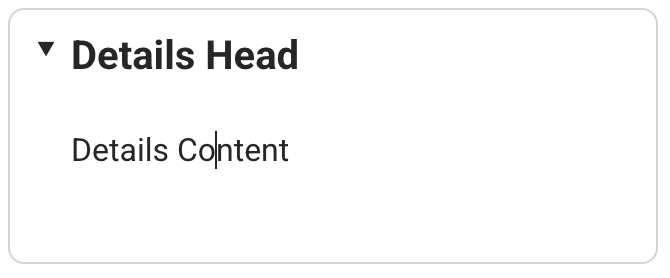
Enter Toggle Summary, Toggle Content in the details editor added to the content editor upon pressing the details icon.
Editor
The editor is the area where you can enter your content.

A floating toolbar will appear on every new line before you start typing where you can quickly select headings.
With Rich Text Editor, you can edit the content to meet your requirements.
Next Steps
The Tip Tap Editor is at the backbone of the Rich Text Editor.
Developers may refer to the Tip Tap Editor Documentation for more details on the editor.
The Simple Editor that we are using here is available under MIT License and is open source and free to use and modify. Please refer below a license link for more details.
License