Programs
All the Programs related management can be accessed using this module, e.g., you can create a new Program, edit Program, delete Program etc.
All Programs
When clicked on the Program menu in the sidebar you will be presented with all the program screens.
All the programs will be listed here.
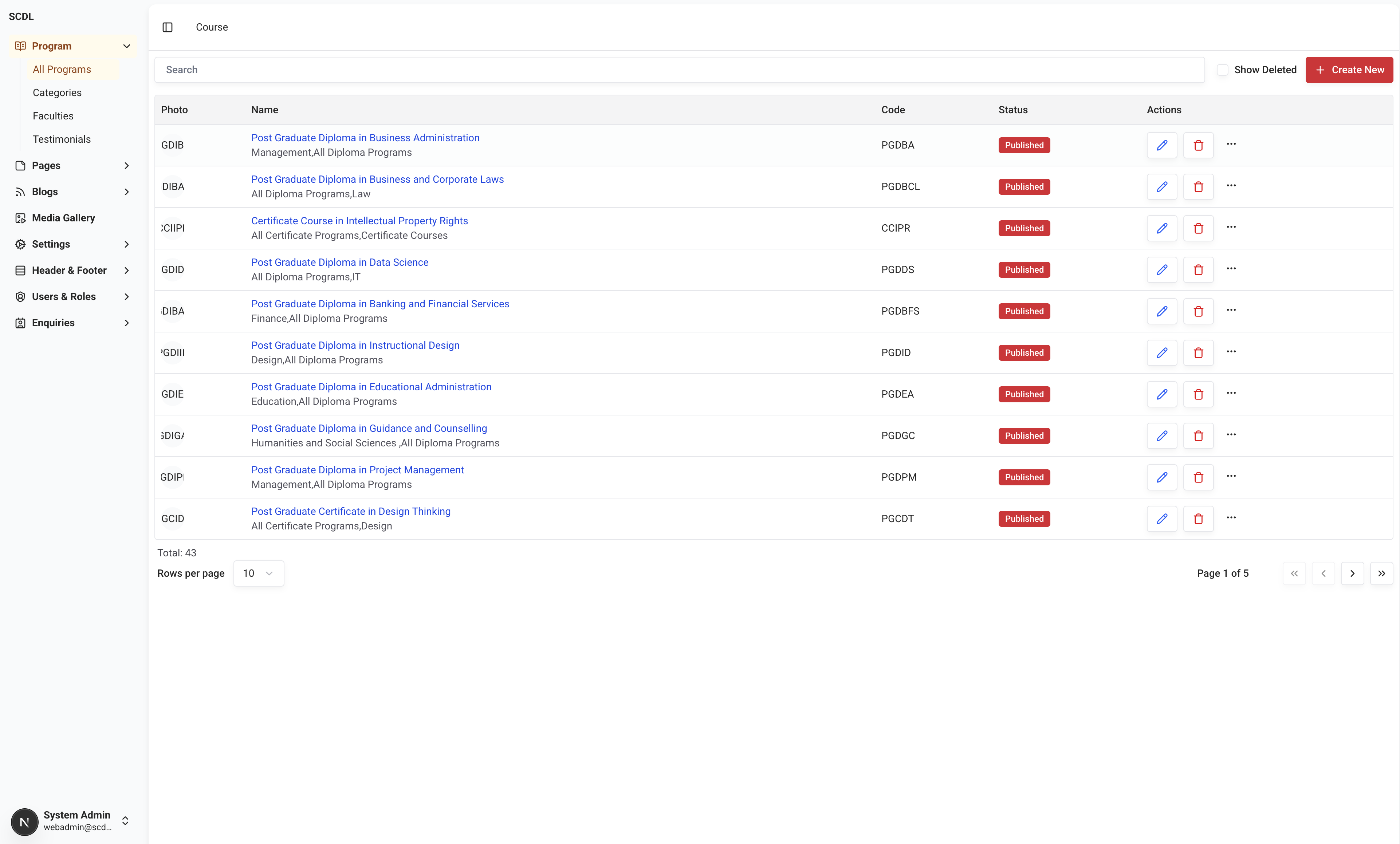
Photo | Program | Code | Status | Actions |
|---|---|---|---|---|
Program Featured Image | Program Name, Program Categories (comma seperated) | Program Code | Published, Draft | Edit, Delete, Preview |
As described above, general program information is displayed in the first four columns, and actions are displayed in the last column.
In the searchbar above the table, you can search for programs by name or code.
All the pagination-related information can be found below the table (e.g., Total items, items per page, page selection, etc.); data is paginated with 10 records per page by default, you can change the number of records per page by selecting the number from the dropdown.
Program Editor
When you click on the Create new button or Edit menu option, you will be presented with the program editor screen.
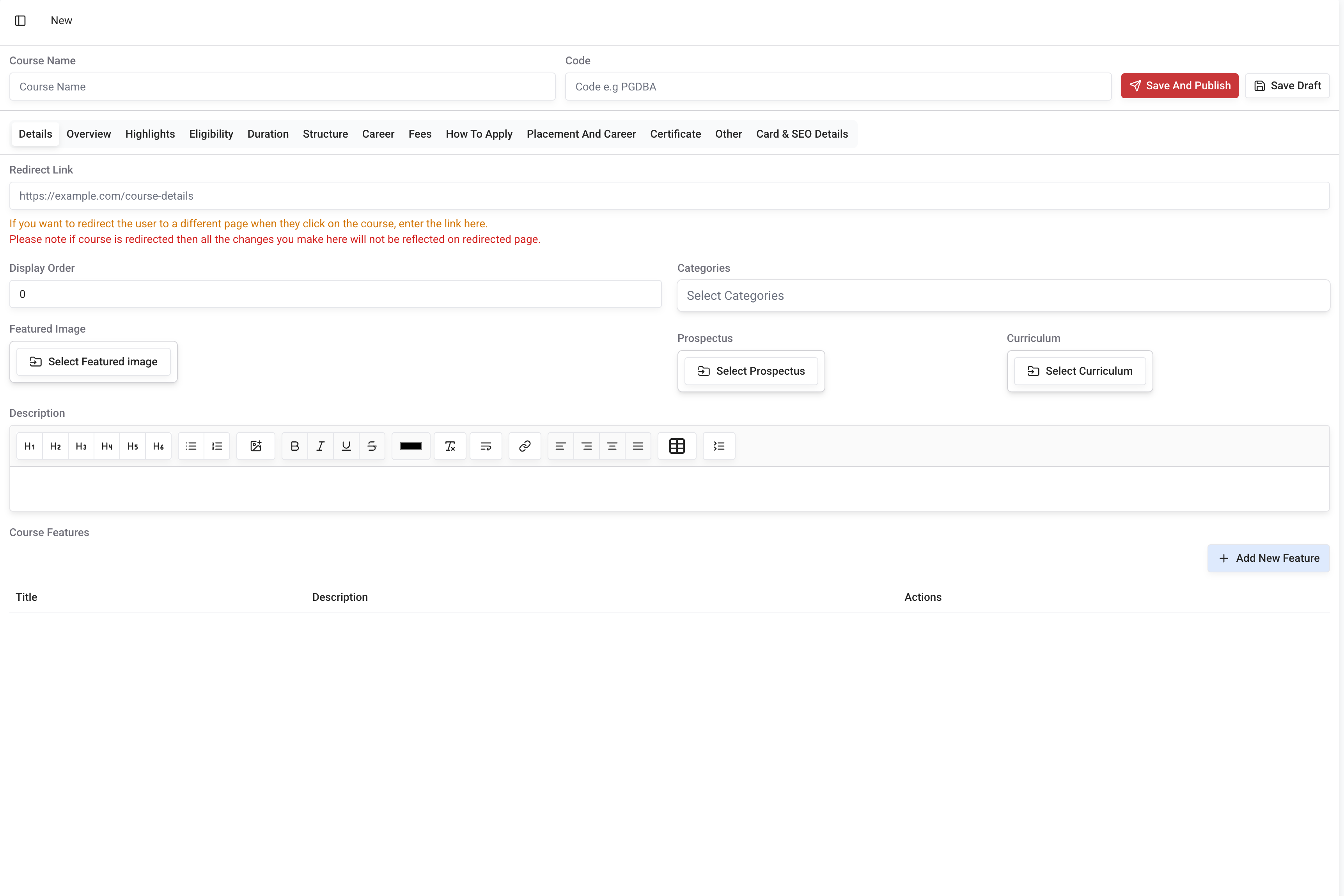
Program Editor—New Program
Blank Editor as above will be presented when you click on the Create New button.
Program Editor - Edit Program
When you click on the Edit menu option, you will be presented with the program editor screen with the program details pre-filled.
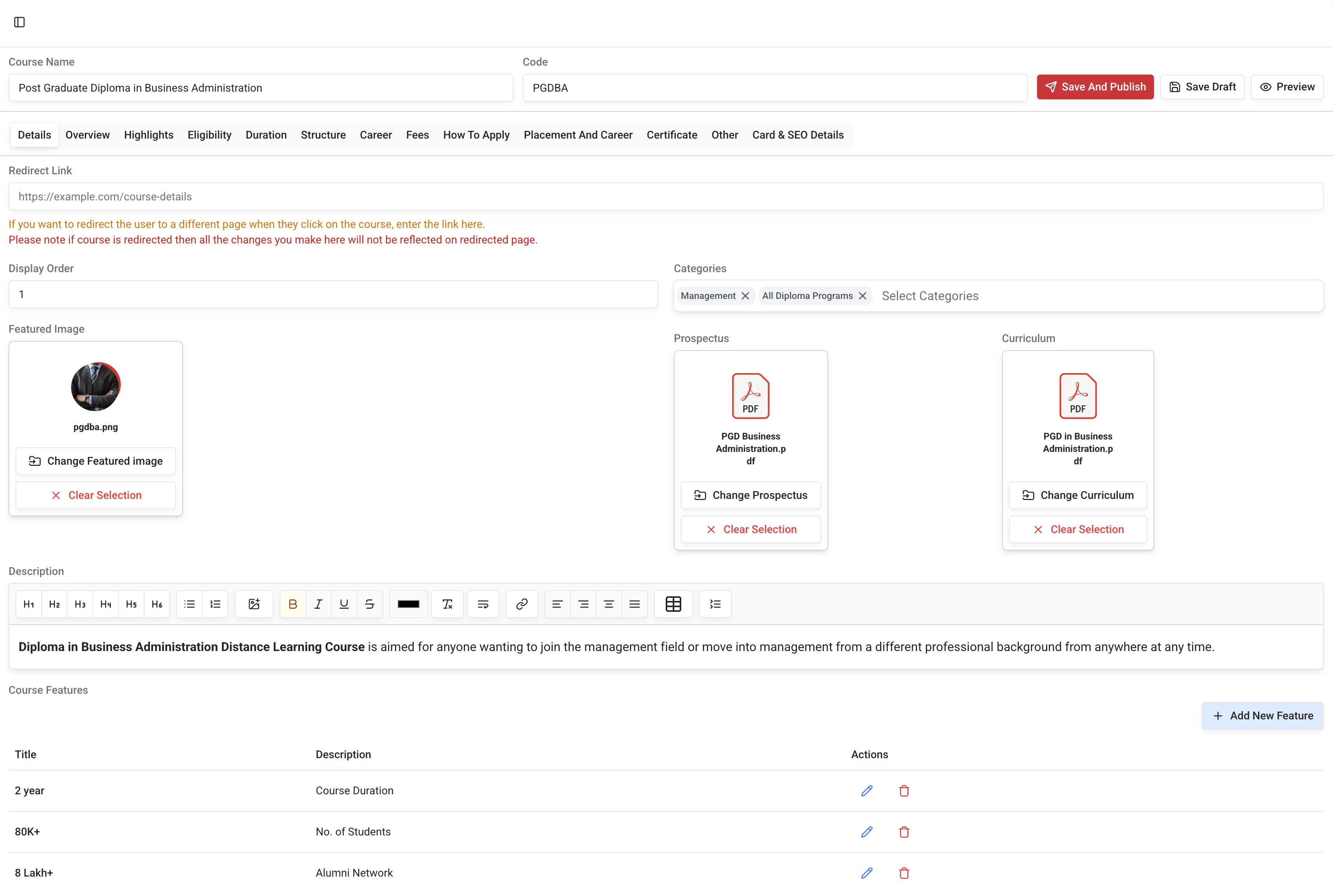
The program editor mainly is divided into two sections:
Name, Code and Action buttons: This section contains the primary details of the program such as name, code, status and action buttons, You can change programs status to draft ot published by clicking on the relevant status button.
Program Content: A content section is further decided into the below subsections:
Details
Overview
Highlights
Eligibility
Duration
Structure
Career
Fees
How to Apply
Placement and Career Opportunities
Certificate
Other
Card & SEO Details
Program Details
In the program details section, you can add the program details such as redirect link, display order, categories, featured image, descriptions and features.
All the fields in this section are self-explanatory, and you can edit or add the details as per your requirement.
Details edited in this section will be reflected in the program hero on the frontend.

Program Overview
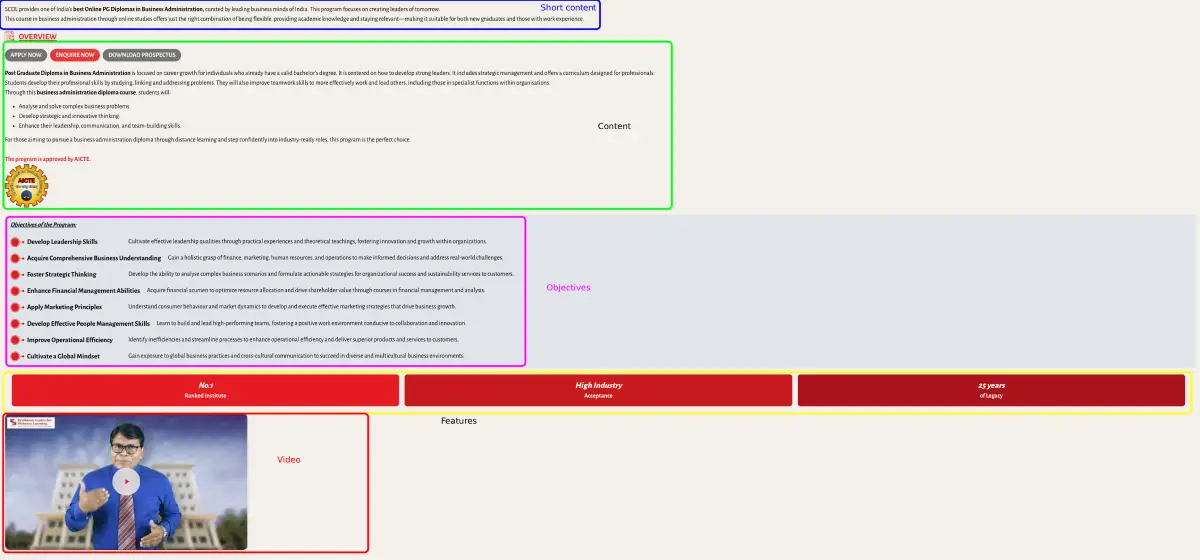
In the program overview section, you can add or edit overview related details such as icon, sort content, video, objectives and features.
Each section is shown in the below image.
Program Highlights
Highlights section editing is very straightforward and self-explanatory.
You can add or edit Graph Title, Graph points, Icon and Features of a highlight section here.
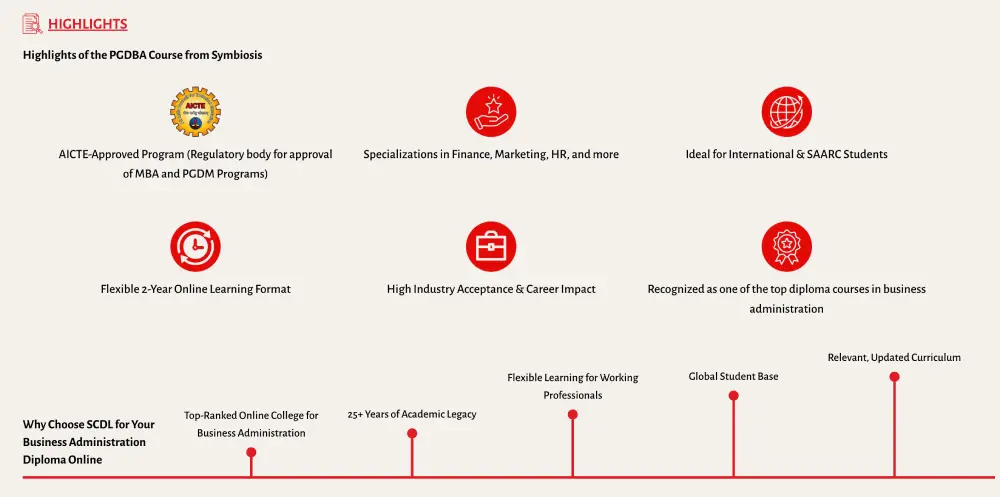
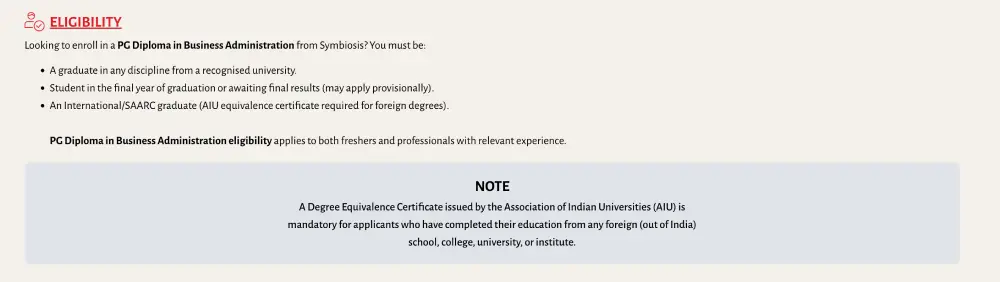
Program Eligibility
Eligibility section you can add or edit the content, icon and note section.
Program Duration
Duration only has an icon and content section.

Program Structure
In the Program Structure section, you can add or edit credit points, content, icon, Semester Content and Specializations section.
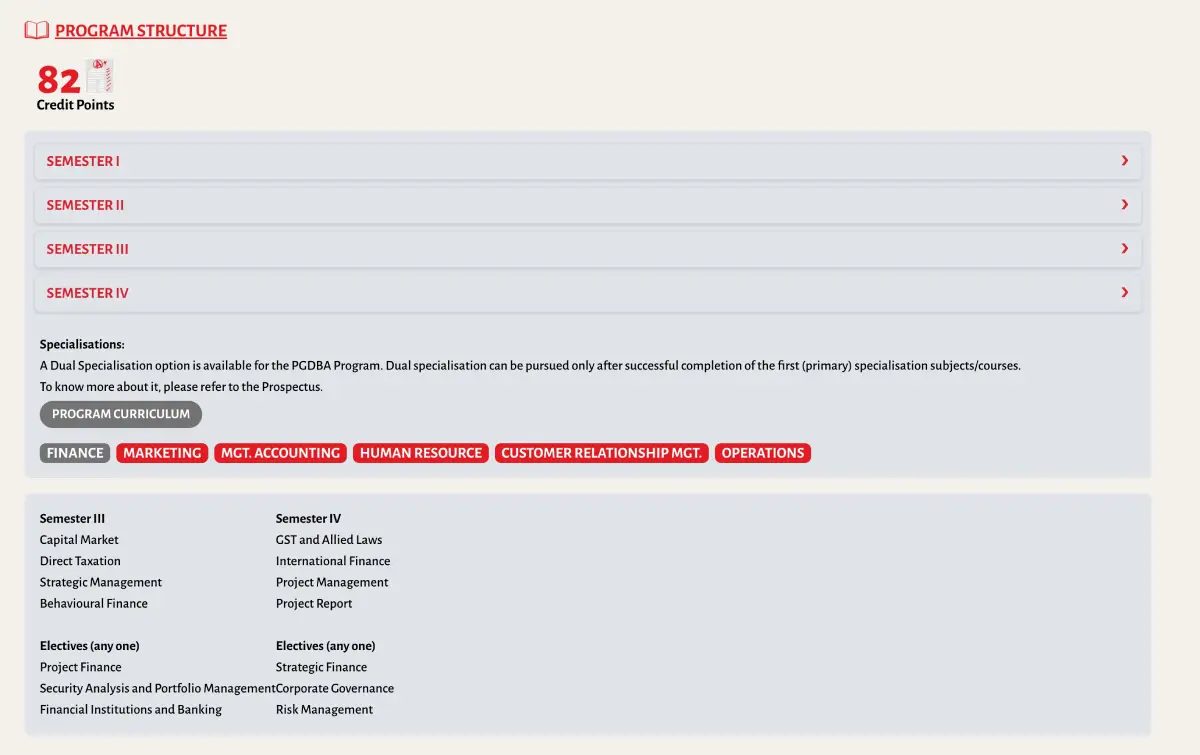
Note the structure of this section here data entered the content section will be rendered directly under the semester section.
Also, the title of the specialization will be displayed in a special selector gray background on selection and primary background for unselected item. On item selection specialization content is displayed in the box below.
Semester content is displayed in the collapse box with the title as the header, and when clicked, content inside the details. You can refer to the image below.

All the multiple items editors have a button to create a new item on the right side of the table.
Entered content is displayed row wise in the table below with the last column with action buttons to edit or delete the items.
For example, the semester editor has a table with three columns described as below.
Title | Description | Actions |
|---|---|---|
Semester 1 | Semester content | Edit, Delete buttons |
In the same manner specialization content can be edited using the multiple item's editor.
Program Career
The career section has only 2 fields to edit i.e., Icon and Features section (multiple items editor).
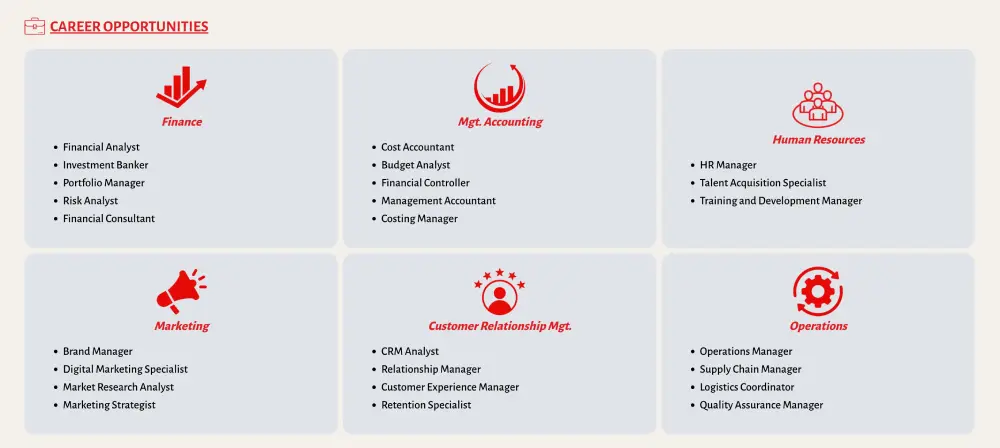
Here features editor has a table with four columns described as below.
Icon | Title | Content | Actions |
|---|---|---|---|
Icon | Finance | Listed content | Edit, Delete buttons |
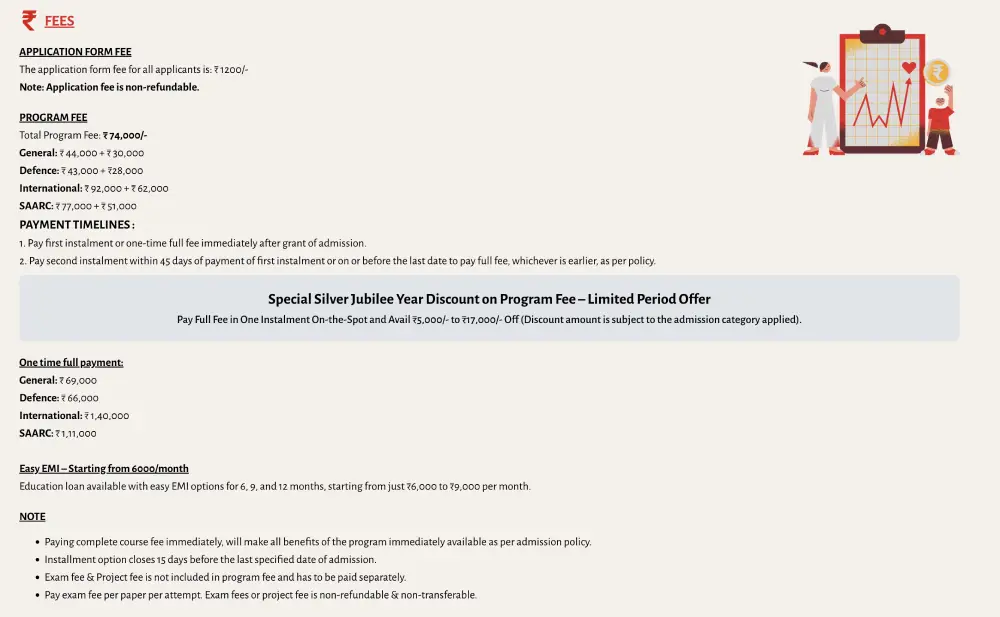
Program Fees
In the fees section, you can add or edit the icon, fees image and items inside the fees section.
All the items created are displayed in order beside the fee image and below the section title.
Program How to Apply
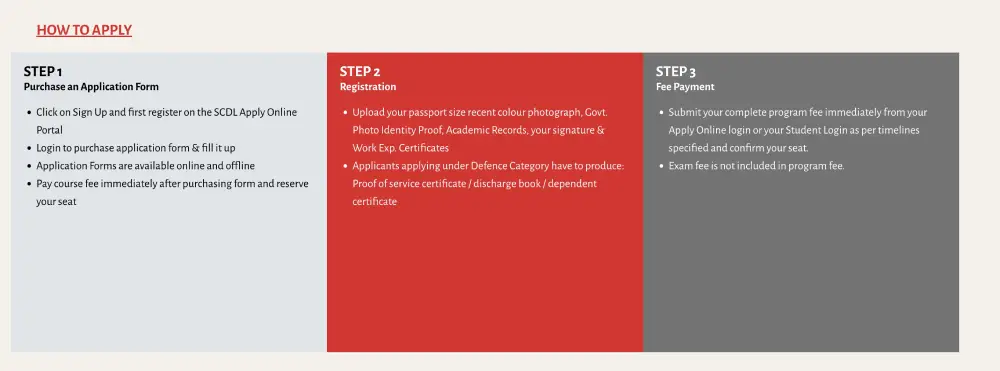
In the how to apply section, you can add or edit the content, icon and how to apply steps.
Program Certificate
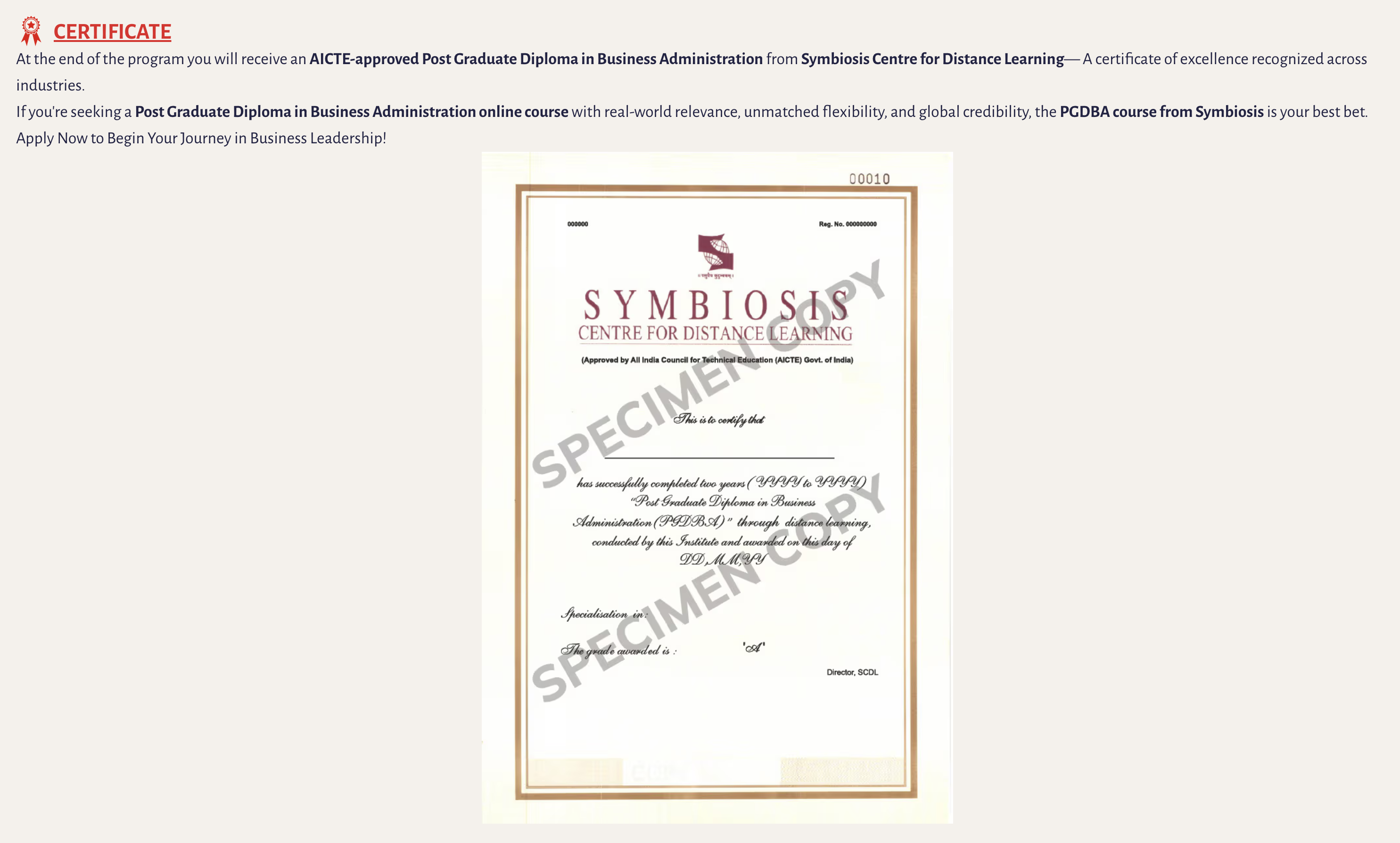
In the certificate section, you can add or edit the certificate image, content and icon.
Program Other
In the other section, you can add or edit Faculty Section icon, Testimonials, Testimonial section icon, FAQ Icon, Faculties, Apply now link and Testimonials.
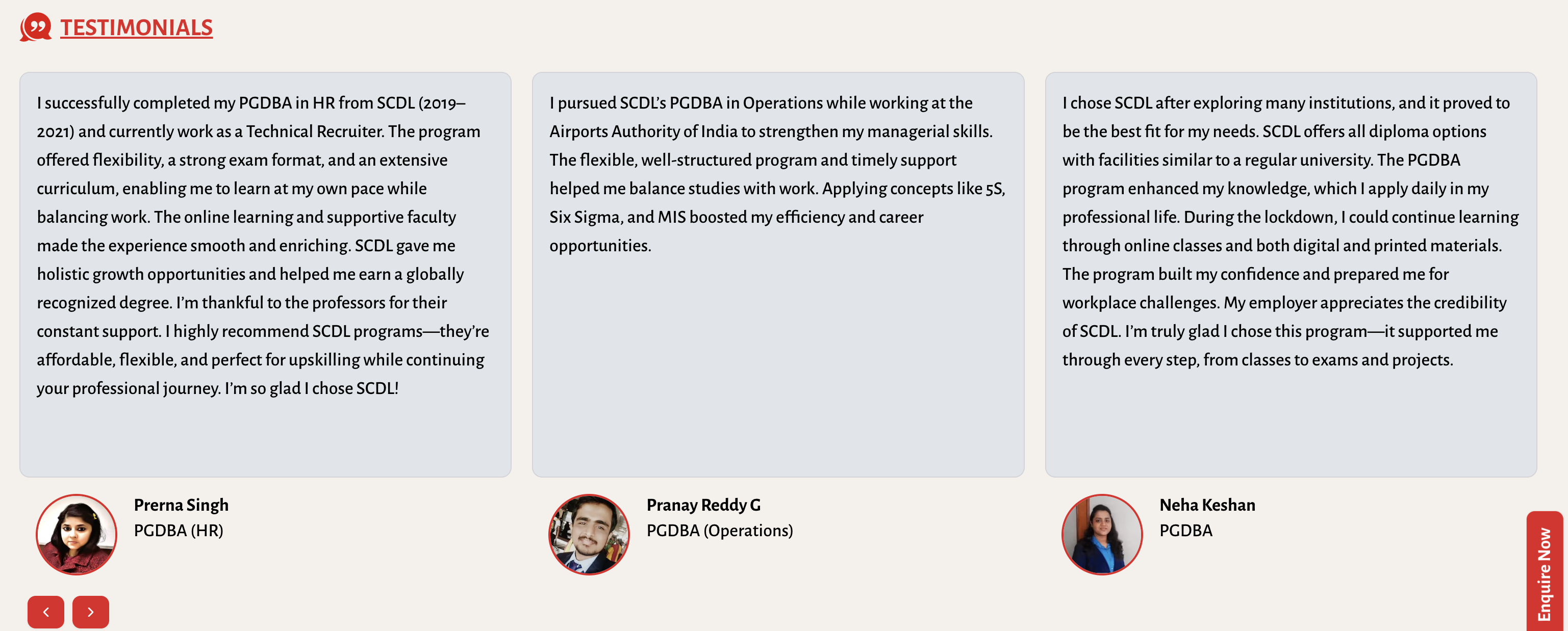
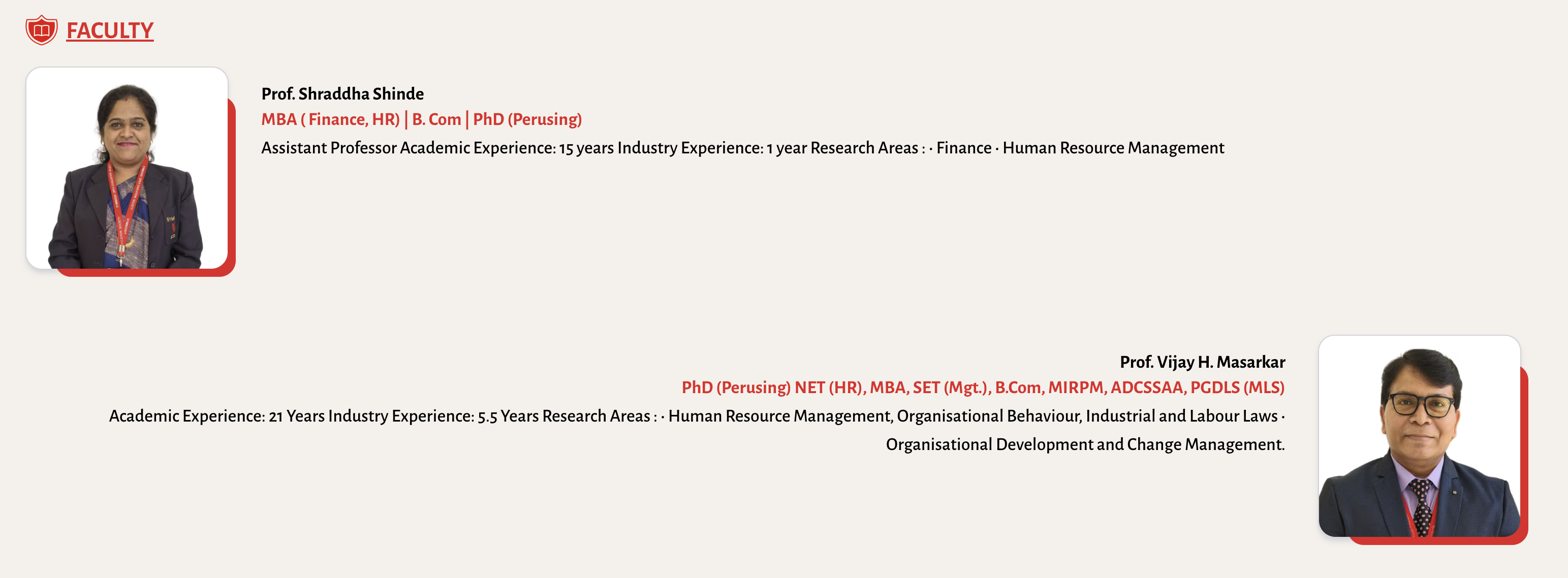
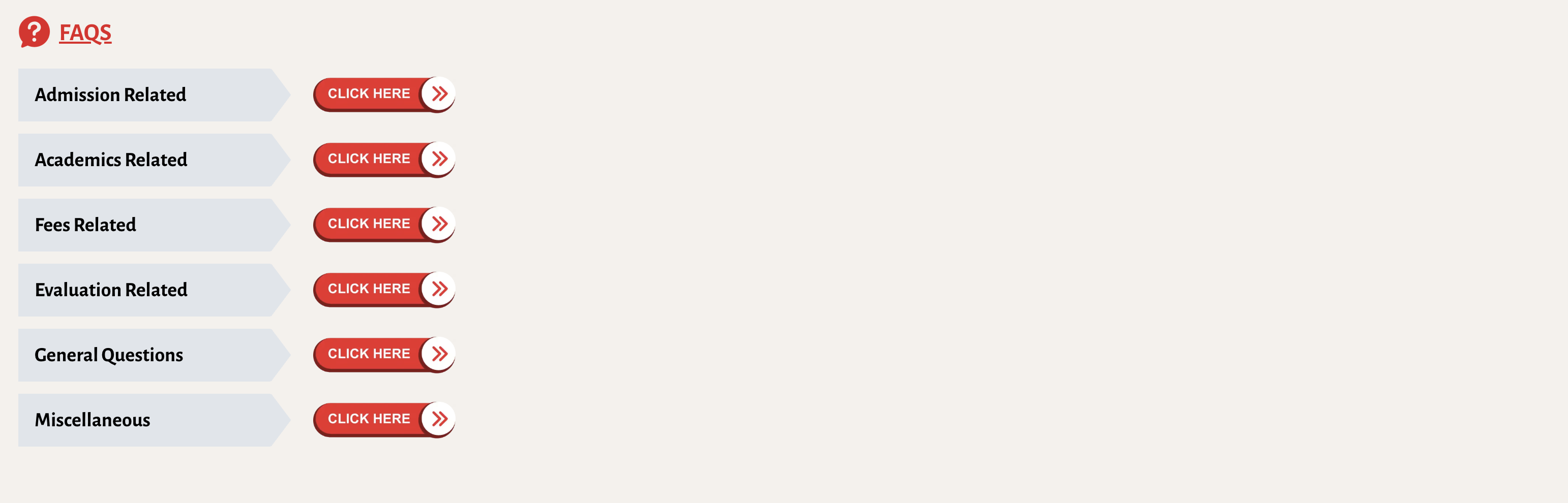
Testimonials can be directly added to the program using the testimonial editor. Testimonials can also be added or edited from the Testimonials Module.
Faculties can only be referenced from the multiselect dropdown in the program editor. You will have to use Faculties Module to add or edit faculty information.
Program Card & SEO Details
Card & SEO details section where all SEO and program card-related details are added/edited.
Card Details
Card Image: By default, the featured image is displayed if the card image is not set if you want to show different image for the program-card in slider this can set from here.
Course Duration: Displayed in the card.
SEO Details
We have included the SEO Details editor to manage SEO-related details of the program.
The below fields from SEO Details are automatically populated based on the program title.
Slug
Meta Title
The remaining fields can be edited by the user using SEO Details Editor.
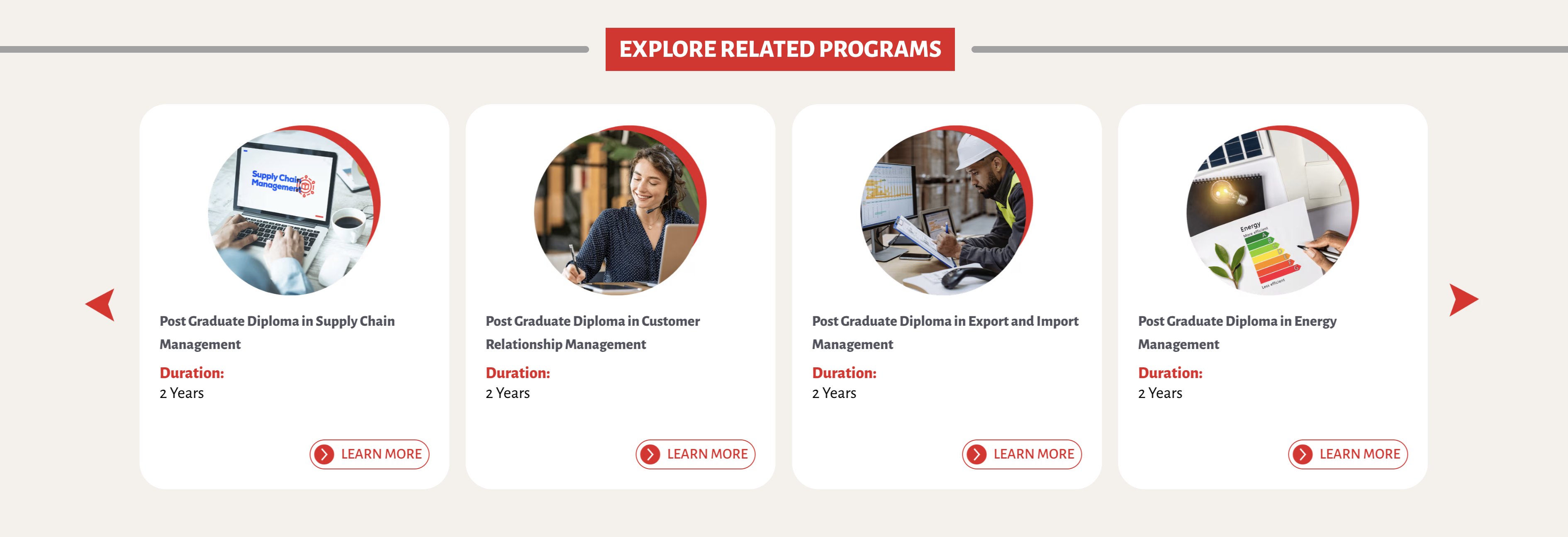
Related Programs
Programs from the same category are automatically displayed in a related programs section.
Related Topics
Program editor is concluded with the related programs section. We also recommend you go though below references to learn more about the program editor.