Media Gallery
Media Gallery module is where you can upload and manage all your media, create directories and organize your media and delete the unwanted media.
When you click on the Media Gallery link in the sidebar, you will be redirected to the Media Gallery page.
Media Gallery Overview
Media Gallery will always start from the All Media directory.
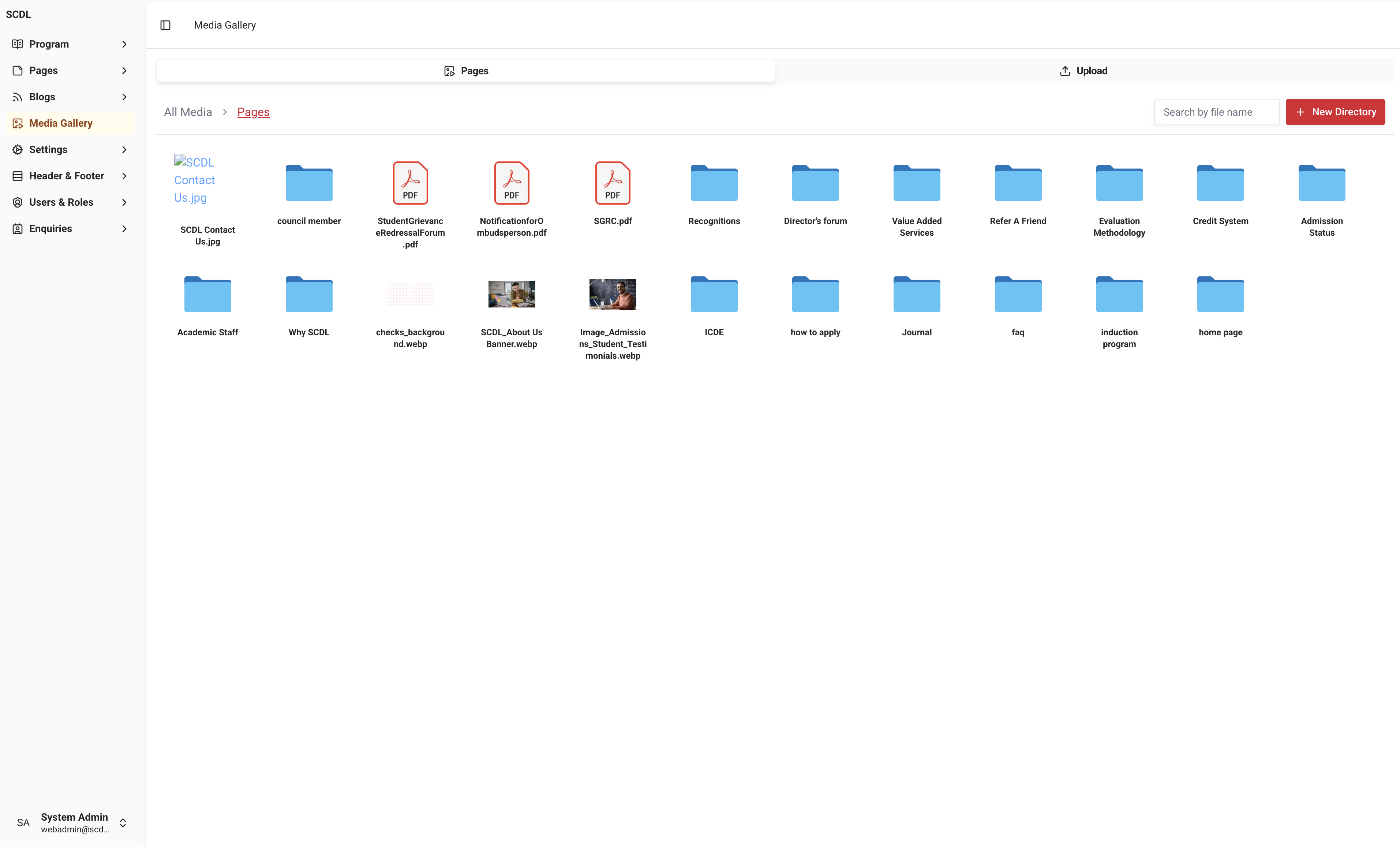
As shown in the above, an image media gallery consists of two major sections.
Files Manager (Tab 1 - Folder Name)
Upload Media
Files Manager
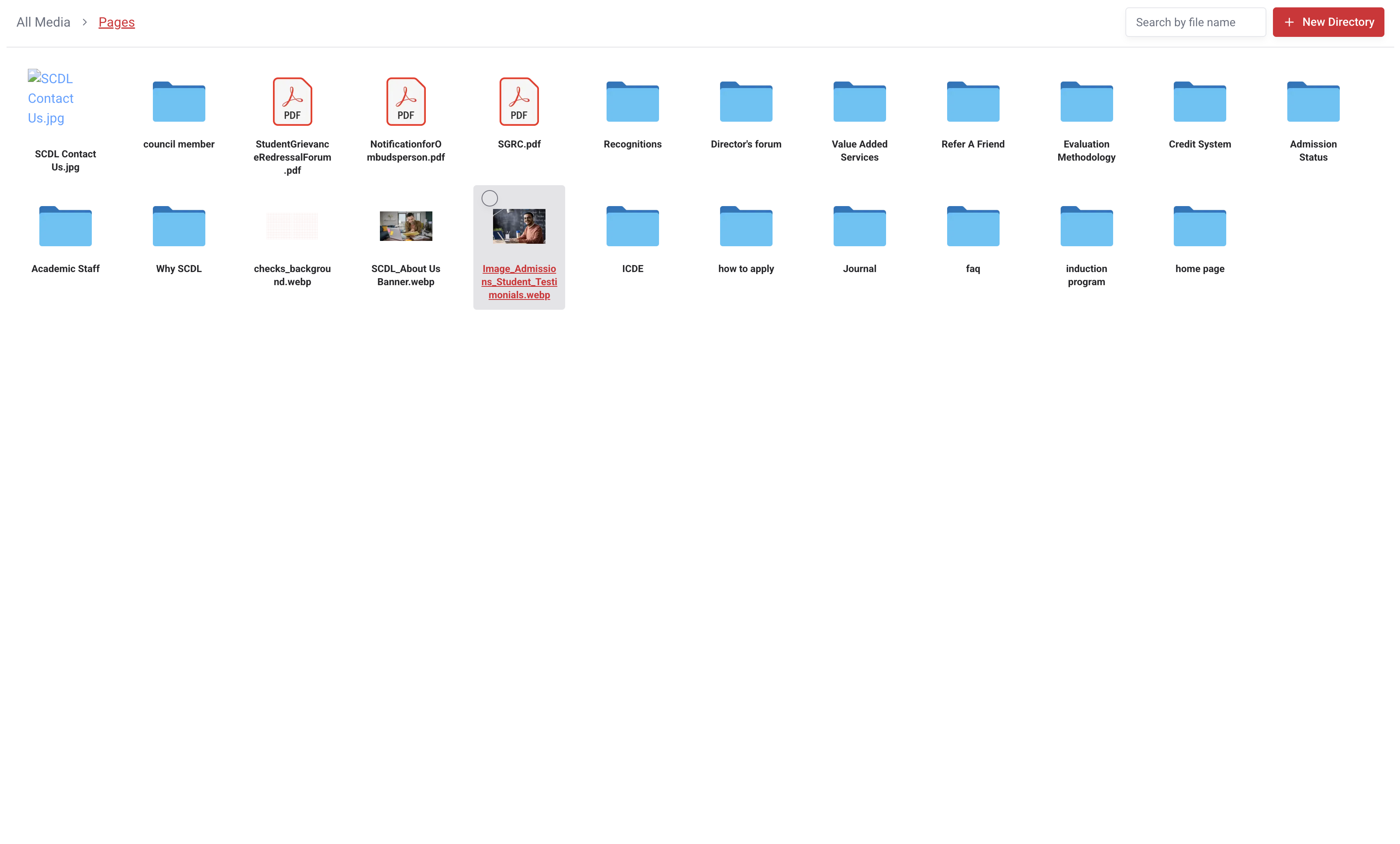
Files Manager is where all files are listed. You can navigate through the directories and select the files to edit, delete or move them to other directories.
Files Manager is divided into two sections.
Top Bar
Files List
Top Bar
In the top bar you can see the following options.
Create New Directory
Search Files
When you click on the Create New Directory button, a new dialog box will appear where you can enter the directory name and click on the Create button to create the directory.
When you select one or more files, the top bar will show the following options.
Delete
Move
Selected Files Count

You can delete or move the selected files or directories by choosing the option from the top bar.
If you choose the Move option, a Media Selector will appear where you can select the destination directory and click on the Select Items button to move the selected files to the destination directory.
If you click on the Delete button, a confirmation dialog box will appear where you can confirm the deletion.
Media Context Menu
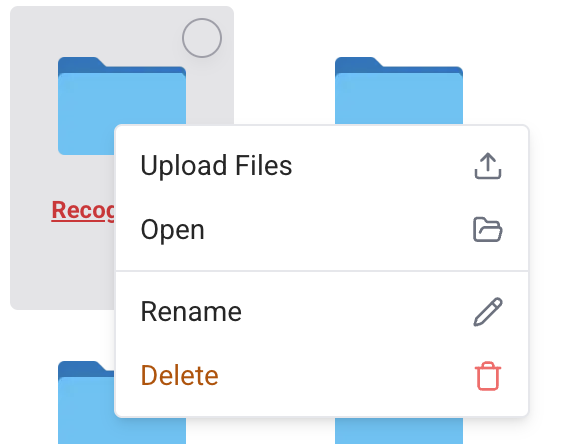
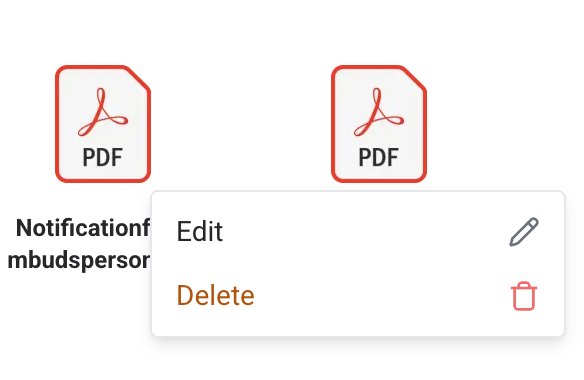
You can right-click on the Media to open the context menu will open with the following options.
Upload Files (If Directory): Only available for directories. Opens file uploader.
Open (If Directory): Only available for directories. Opens the directory and lists all files inside the directory.
Edit: Opens the editor dialog box where you can edit the file name, alternate text (only if a selected file is an image or video).
Delete: Opens a confirmation dialog box where you can confirm the deletion.
Editing Media
To edit the media, click on the Edit option from the context menu.

As shown in the above image, you can edit the media name, alternate text (only if a selected file is an image or video) and click on the Save Changes button to update the changes.
Uploading Media
To upload media, select the Upload tab from the Media Gallery module or select an upload menu from the context menu of the directory.
When you select the Upload tab, a file uploader will appear where you can upload the media. File Uploader will always open for the current selected directory.
As shown in the below image, you can see the file uploader for the All Media directory.

To select the files, you can drag and drop them to the file uploader or click on the Drop Files Here section to browse the files.
In the above example, we have selected four files to upload. Once files are dropped or selected, the Selected Files section will be shown with the selected files preview and the option to remove (cross-icon).
On the top of the Preview Section, you can see the Upload Files and Clear buttons.
Upload Filesbutton will start uploading the selected files to the current directory.Clearbutton will clear the selected files.
On successful upload, a success message will be shown in the top right corner of the page and a Selected Files section will be cleared.
Uploaded files will appear in the Files Manager of the current directory and will be available for editing and deleting and selecting in Media Selector.
Media Selector
Media Selector is used to select the media where ever needed in the editors. We have created a comprehensive Media Selector that can be used in the editors including the Rich Text Editor.
Media selector is available in the following selection modes.
Single: Single media can be selected.
Multiple: Multiple media can be selected.
Where ever multiple selection is required, you will be able to select multiple media by clicking on the checkbox in the top right corner of the media item and by clicking on the Select Items button at the bottom of the Media Selector.
Media selector will allow you to select a required type of media based on the module requirement e.g., in some modules you will only be able to select images or only PDF files etc.
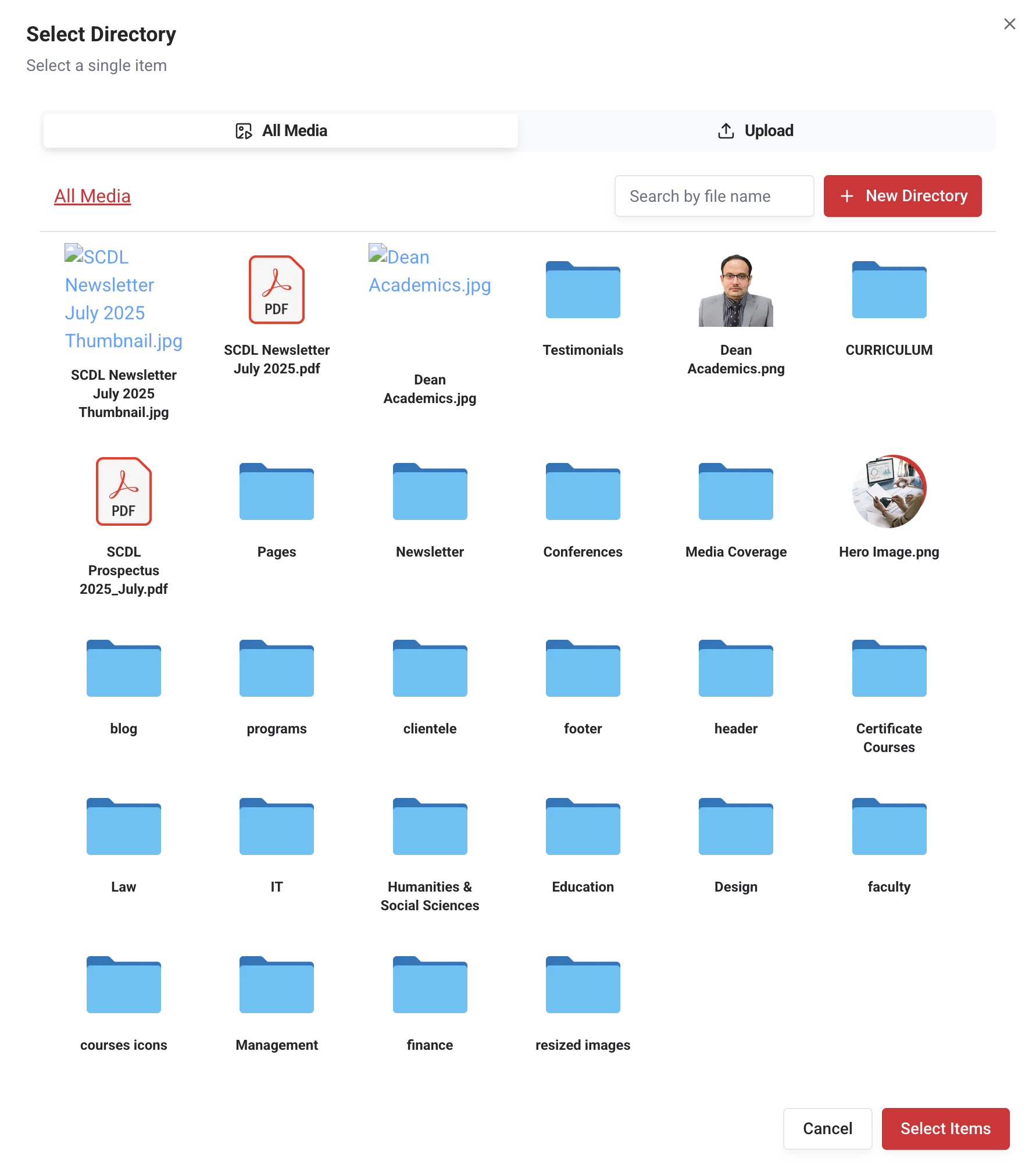
You can also search for the files by entering the search term in the search box at the top of the Media Selector.
You can navigate through the directories by clicking on the directory (folder icon or name). You can also manage files from the media selector by using Files Manager available directly in the media selector.
You can also upload files by selecting the Upload tab in the Media Selector.
Media Selector is a great tool to select the media and manage the media directly from the editors and other places.
Concluding this topic, we have covered the Media Gallery module in detail. Also, please go through the below-related topics to know more about other modules and their usages.