Pages
All the Pages related management can be accessed using this module, e.g., you can create a new Page, edit Page, delete Page etc.
All Pages
When clicked on the Pages menu in the sidebar you will be presented with all the page screens.
All the pages will be listed here.
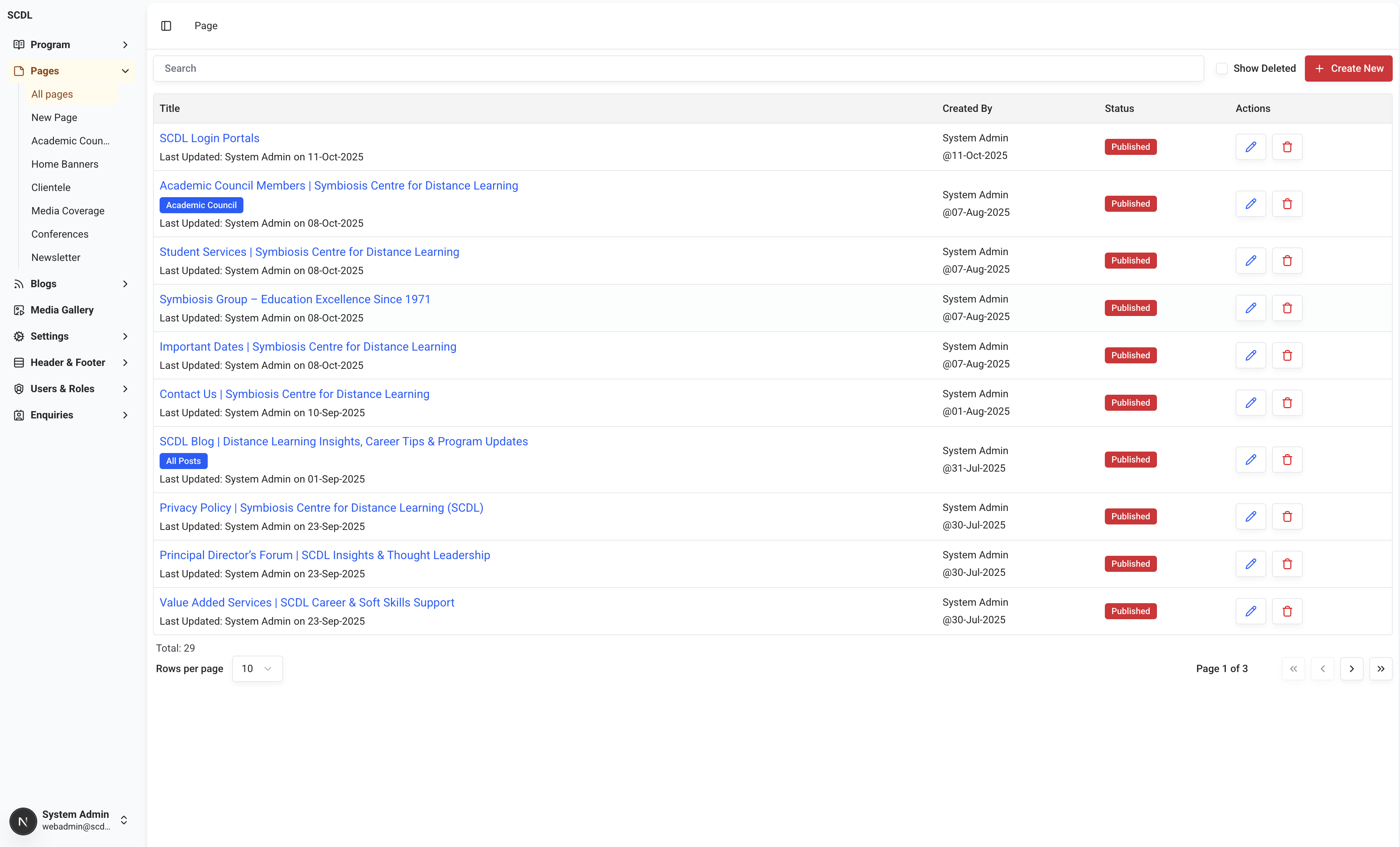
Title and other info | Created By | Status | Actions |
|---|---|---|---|
Page Title, Page Type (Home, All Posts etc), Last modified by | Admin, Editor etc. | Published, Draft | Edit, Delete |
As described above, general Page information is displayed in the first three columns, and actions are displayed in the last column.
In the searchbar above the table, you can search for Pages by title, type.
All the pagination-related information can be found below the table (e.g., Total items, items per page, page selection, etc.); data is paginated with 10 records per page by default, you can change the number of records per page by selecting the number from the dropdown.
Page Editor
When you click on the Create New button or Edit menu option, you will be presented with the Page editor screen.
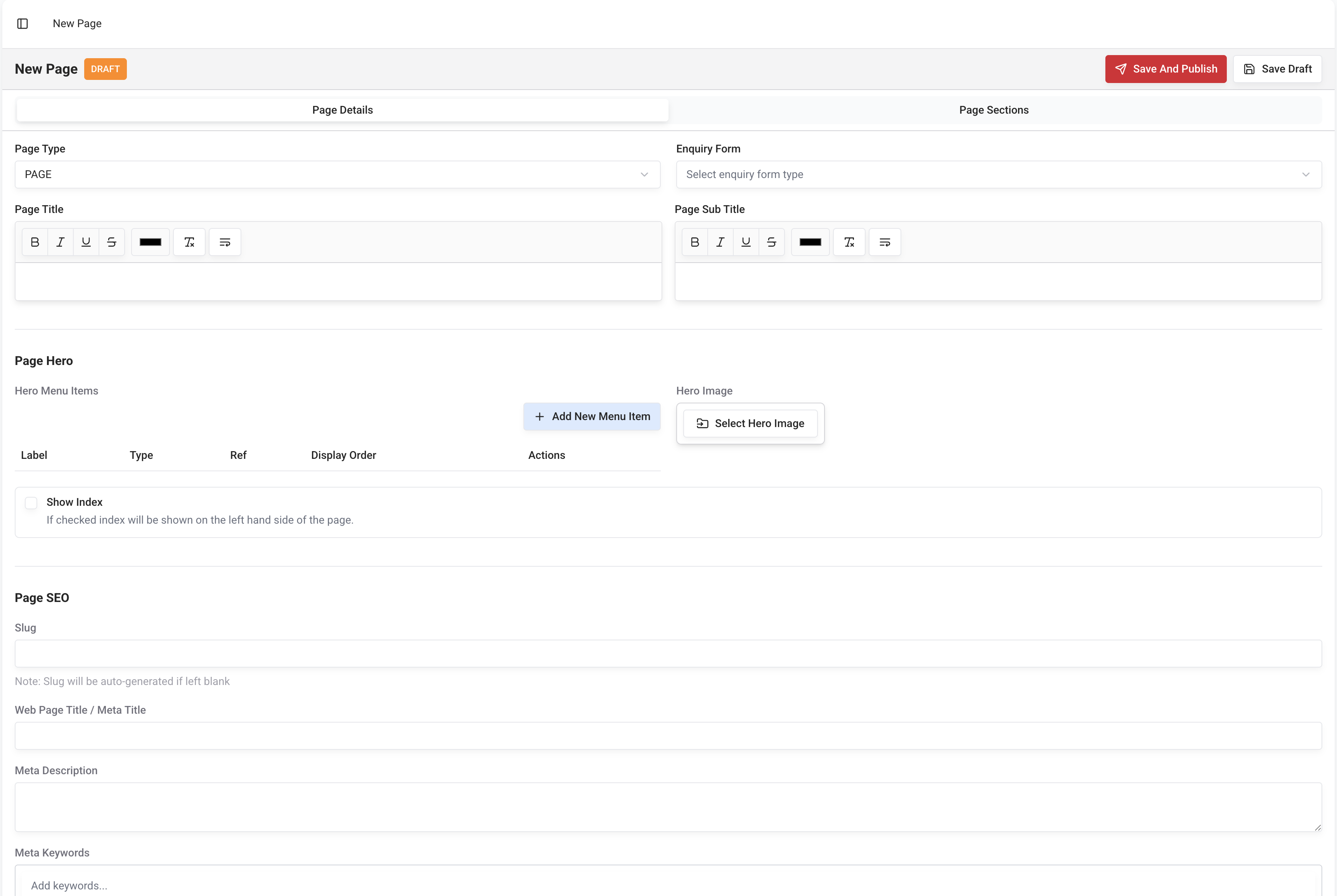
Page Editor—New Page
Blank Editor as above will be presented when you click on the Create New button.
Page Editor—Edit Page
When you click on the Edit menu option, you will be presented with the page editor form prefilled with selected page details.
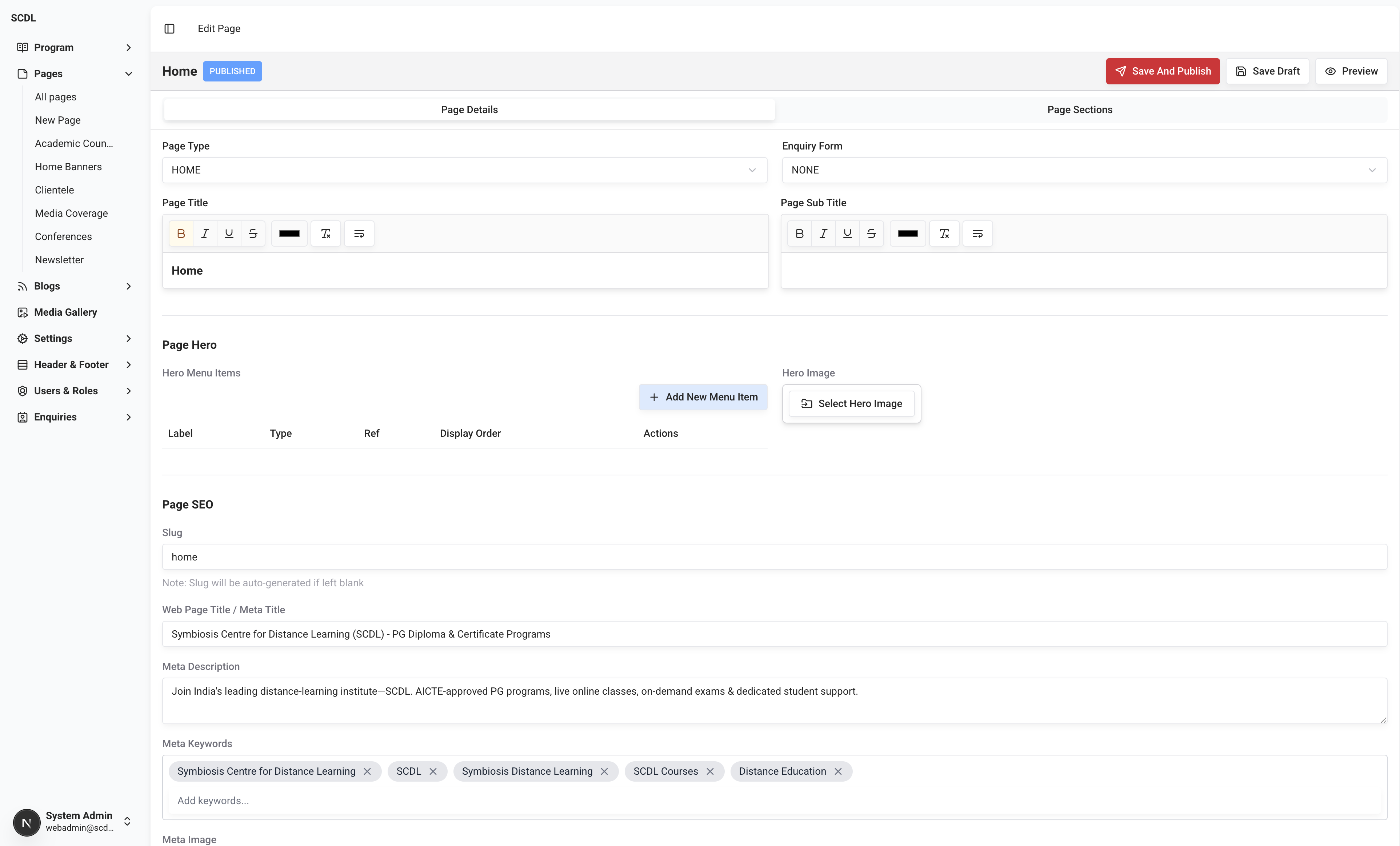
The Page Editor mainly is divided into three sections:
Top Bar:
Publish,Draftaction buttons are located in the top bar.Page Details: This section contains the primary details of the
Pagesuch as Page Title, Hero Image, SEO Details, etc.Page Sections: Sections of the
Pageare displayed and can be edited or added in this section. You can create multiple sections for a page.
Page Details
Page Structure—Hero
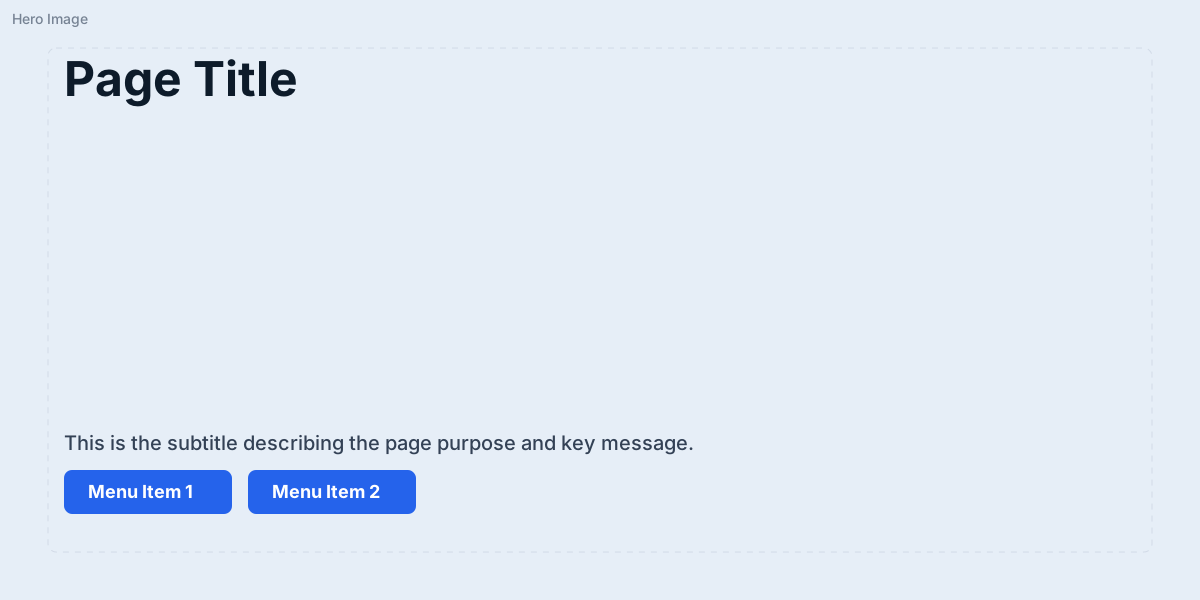
Page Hero has four selectable fields described as below:
Hero Image: Hero section background image
Page Title: Page Title
SubTitle: Page SubTitle (Tagline)
MenuItems: CTA Buttons (Please refer Menu Editor)
Hero Section is displayed on the top of the page with Hero Image as an end-to-end Background, then Page Title at the top of the section and SubTitle, MenuItems at the bottom of the section.
You can change the Page Hero details in the Page Details section.
Page Structure-Sections
Page Sections Area can be structured in two ways.
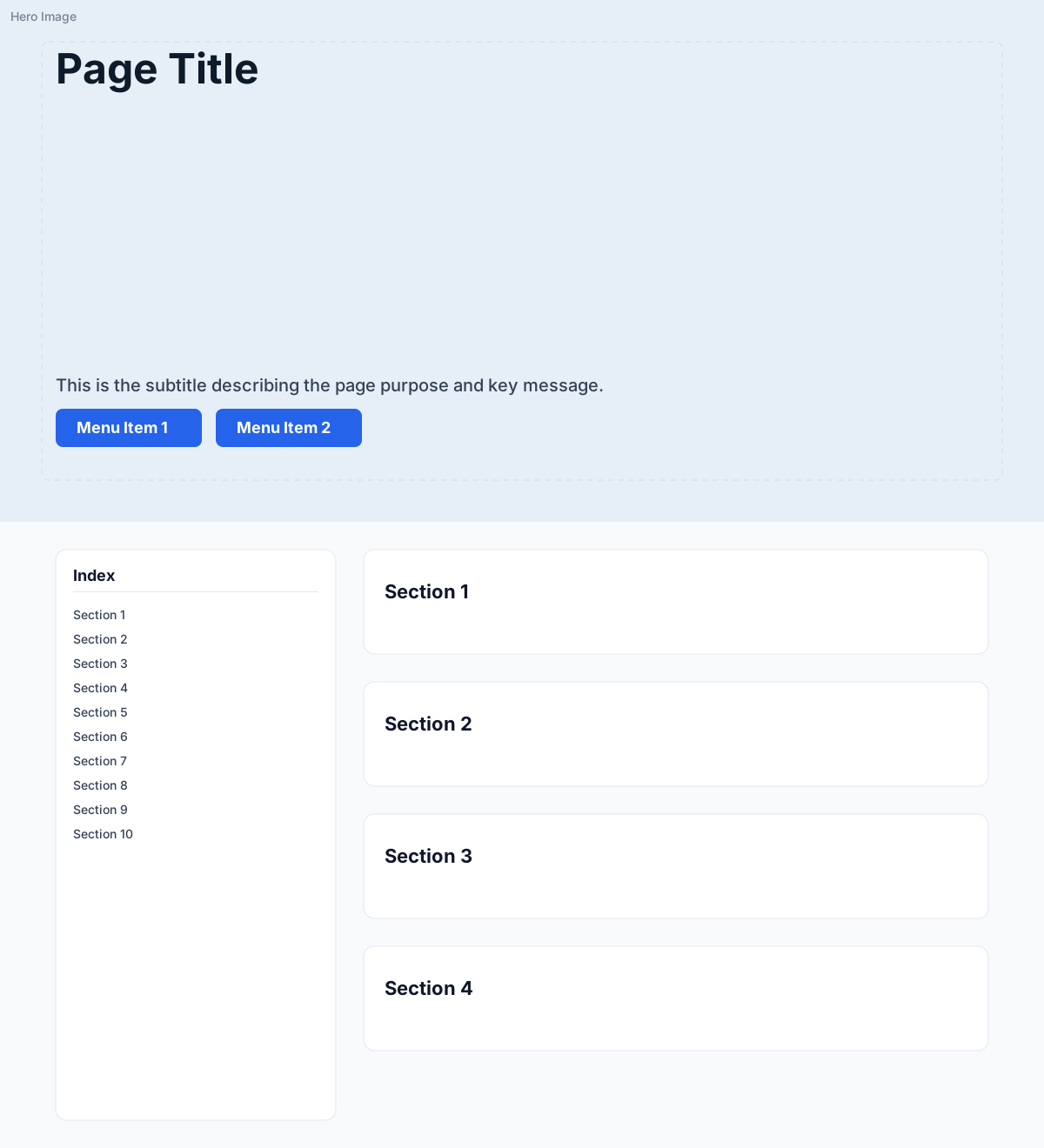
With Index: Index will be displayed on the left side of the page, and the content is displayed on the right side.
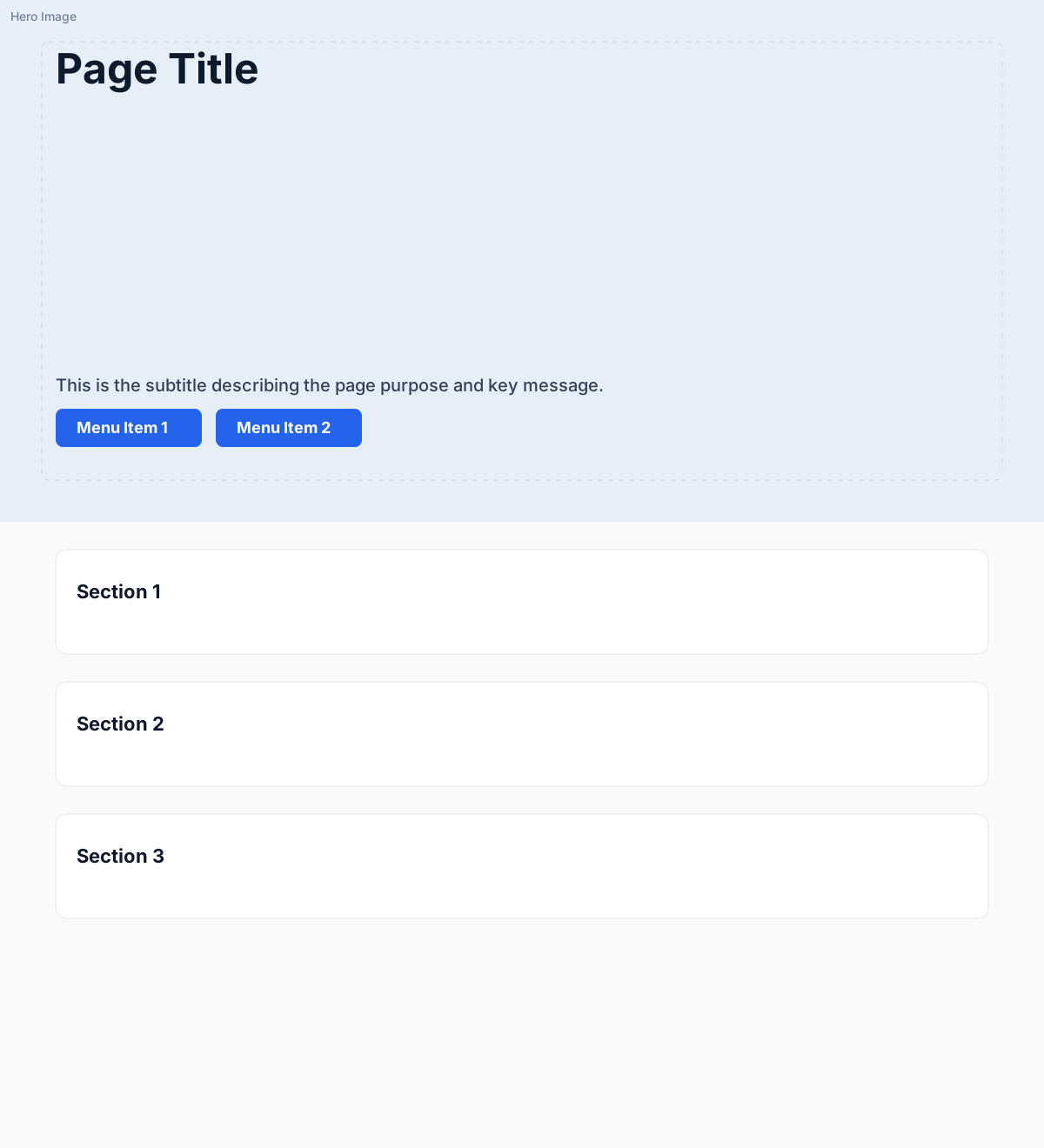
Without Index: All the sections will be displayed one after the other on the page.
You can check the Show Index checkbox to enable the index.
Below is the basic representation of the page structure with index enabled and disabled.
Page With Index
When Show Index checkbox is selected, the index will be displayed on the left side of the page, and the content is displayed on the right side.
Page Without Index
When Show Index checkbox is unselected, the index will be hidden and all the sections will be displayed one after the other on the page as shown in the image below.
SEO Details
We have included the SEO Details editor in the page details editor to manage SEO-related details of the page.
The below fields from SEO Details are automatically populated based on the page title.
Slug
Meta Title
The remaining fields can be edited by the user using SEO Details Editor.
Page Types
A variety of page types are available to suit the needs of the website.
All the page types are explained in detail in the Page Types section.
Below are the available page types available at the time of writing this document:
Page: Simple page with no markings e.g. (About Page)
Home: Home page (root page, when a user lands on a domain name, this page will be shown)
Testimonial: Like other pages, this page also has a hero, seo, and all other details, in addition to this page, will display three testimonials for each program category.
FAQ: Marking the page as an FAQ page will link this page to the FAQ section in the program details page.
All Courses: Marking the page as an ALL_COURSES page will link the page to a
PROGRAMSmenu in the header. And apart from saved details like a page hero, seo, and all other details, this page will also display sections for eachProgram CategoryAll Posts: Marking the page as an ALL_POSTS page will link the page to a
BLOGmenu in the header and everywhere else. And apart from saved details like a page hero, seo, and all other details, this page will also displayAll Blog Postscreated using Blog Management.Faculty: Like other pages, this page also has a hero, seo, and all other details, in addition to this page, will display all the faculty details created using Faculty Module on this page.
Refer A Friend: Like other pages, this page also has a hero, seo, and all other details, in addition to this page, will display Refer A Friend form.
Admission Status Search: Like other pages, this page also has a hero, seo, and all other details, in addition to this page, will display an Admission Status Search form.
Media Coverage: Like other pages, this page also has a hero, seo, and all other details, in addition to this page, will display All the media coverage records created using Media Coverage Module on this page.
Conferences: Like other pages, this page also has a hero, seo, and all other details, in addition to this page, will display All the conference records created using Conferences Module on this page.
Newsletter: Like other pages, this page also has a hero, seo, and all other details, in addition to this page, will display All the newsletter records created using Newsletter Module on this page.
Privacy Policy: Like other pages, this page also has a hero, seo, and all other details, in addition to this, if the page is marked as PRIVACY_POLICY, it will be linked to the Privacy Policy menu in the footer.
Academic Council: Like other pages, this page also has a hero, seo, and all other details, in addition to this page, will display All the academic council records created using Academic Council Members Module on this page.
Page Sections Editor
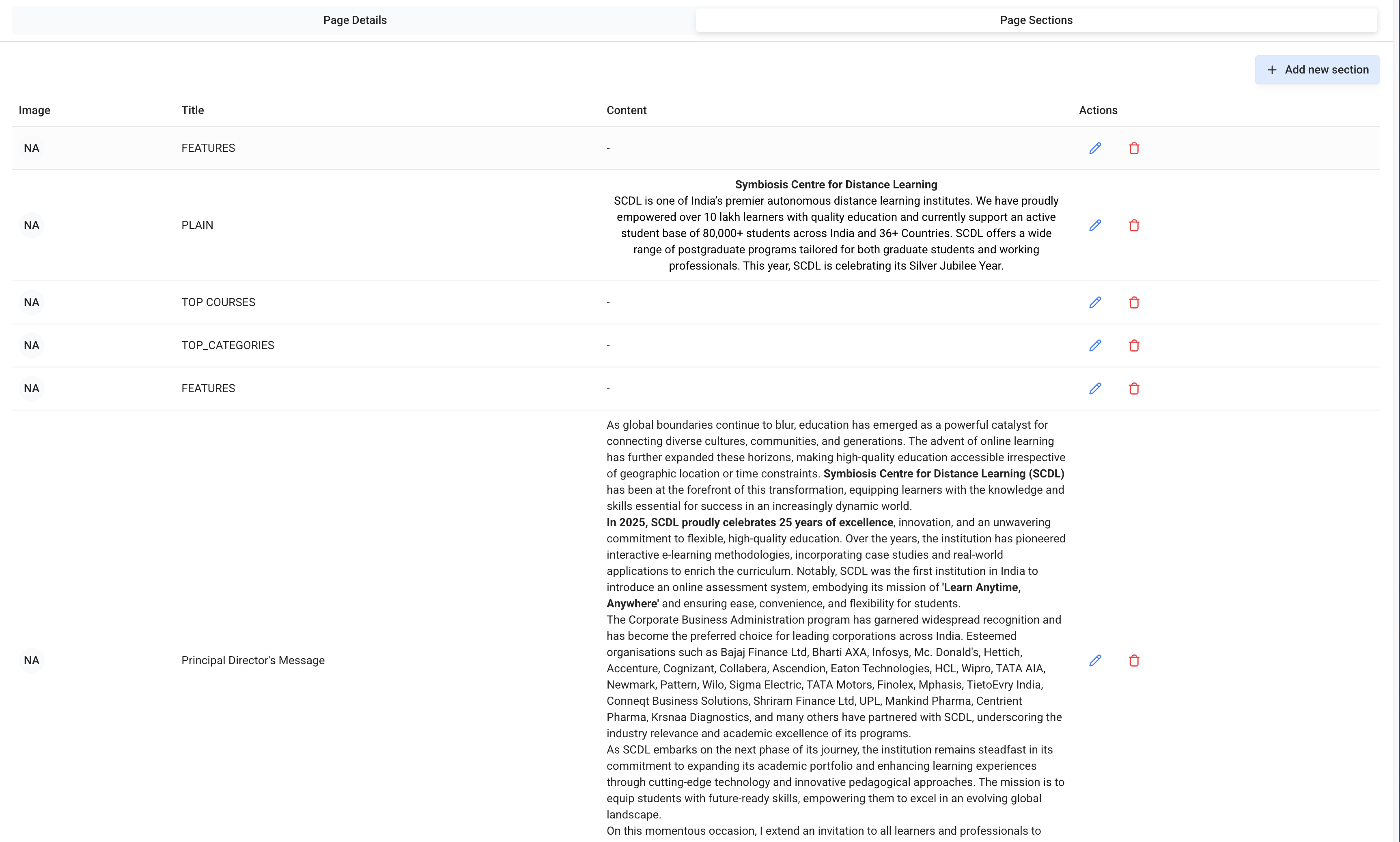
Page Sections Editor is used to create and edit the page sections. You can create multiple sections for a page.
You can add a new section by clicking on the Add New Section button. Similarly, you can edit the page section by clicking on the Edit (Pencil Icon) button.
You can also delete the page section by clicking on the Delete (Trash Icon) button.
Editing the Page Section
You can edit the page section by clicking on the Edit button. In the same manner you can add a new section by clicking on the Add New Section button.
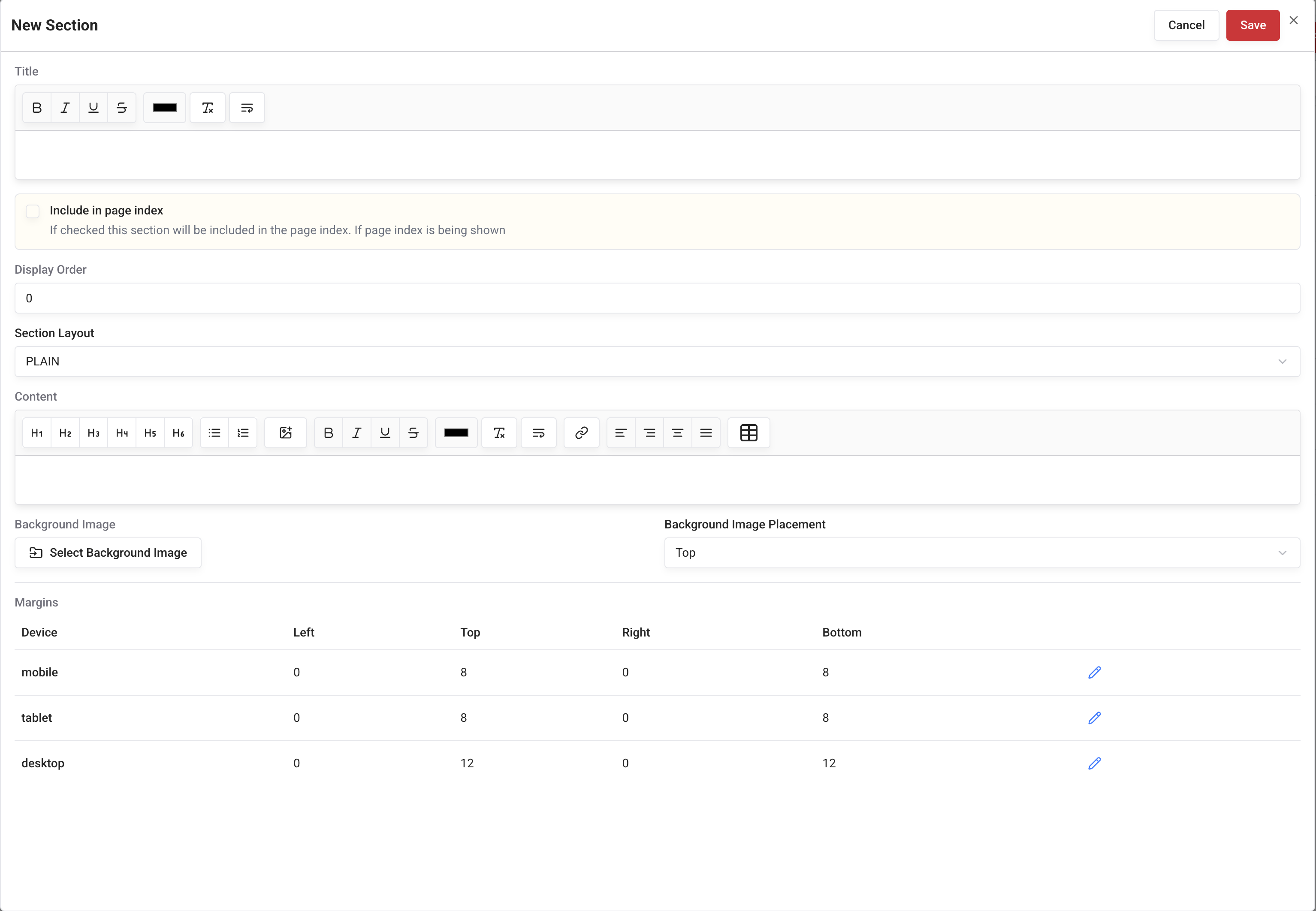
The page section has the below fields:
Section Title: Section Title
Display Order: Order in which the section will be displayed
Section Layout: Section Layout
Section Content: Section Content
Section Margins: Section Margins for Desktop, Tablet, and Mobile Screens (Space to leave between the sections)
Section Background Image Fields:
Section Background Image: Background Image for the section
Section Background Image Placement: Background Image placement (Top, Bottom)

Section Image Fields:
Only available for section layout type LAYOUT_1, LAYOUT_2, LAYOUT_3, LAYOUT_4, CATEGORY, VALUE_ADDED_SERVICE, DIRECTORS_MESSAGE, ROUNDED_RIGHT
Section Image: Image for the section
Section Image Placement: Image placement (Left, Right)
Section Index Fields:
Include In page index: If selected, the index item will be created for this section
Index Label: Label for the section index item (Auto generated if left blank, based on the section title).

Section Layout Fields:
Section Background Color: Background color for the section (Only available for section layout types LAYOUT_1, VIDEO, ROUNDED_RIGHT, VALUE_ADDED_SERVICE)
Section Subtitle: Subtitle for a section (Only available for section layout type LAYOUT_4)
Title Background Color: Background color for the section title (Only available for section layout types LAYOUT_4, ABOUT_MAIN, ROUNDED_RIGHT)
Title Text Color: Section title text color (Only available for section layout types LAYOUT_4, ABOUT_MAIN, ROUNDED_RIGHT)
Top Courses: Multiselect dropdown to select programs (Only available for section layout type TOP_COURSES)
Course Category: Multiselect dropdown to select program categories (Only available for section layout types TOP_CATEGORIES, CATEGORY)
YouTube Video ID: YouTube video id field (Only available for section layout type VIDEO)
Google Map URL: The Google map url field (Only available for section layout type GOOGLE_MAP)
Show Table Border: If checked borders will be shown on all the tables in the content. (Only available for section layout type LAYOUT_1)
Short Description: Section short description mainly for DIRECTORS_MESSAGE where short content will be displayed as is and section content will be displayed in the
Read Moredialog. (Only available for section layout type DIRECTORS_MESSAGE)Content After Features: Content to be displayed after a feature's container. (Only available for section layout type ROUNDED_RIGHT)
Title Icon: Icon to be displayed with a section title, rendered as a prefix to section title. (Only available for section layout types LAYOUT_3, FEATURES)
Features Title: Title for feature's content. (Only available for section layout types LAYOUT_3, ROUNDED_RIGHT)
Feature's: Multiple Items editor with relevant fields, mainly Title, Content, and Icon, Icon maybe omitted in some cases. (Only available for section layout types FEATURES, FEATURES_FOUR_COLUMN, FEATURES_SPECIAL_ONE_COLUMN, FEATURES_SPECIAL_TWO_COLUMN, FEATURES_SPECIAL_THREE_COLUMN, LAYOUT_2, LAYOUT_3, ROUNDED_RIGHT, and VALUE_ADDED_SERVICE)
No of items in one feature group: No of items to be displayed in one feature group. (Only available for section layout type LAYOUT_2)
Menu Items: Multiple menu items field, please refer Menu Editor doc for more information.
(Only available for section layout types TOP_CATEGORIES, HOW_TO_APPLY, LAYOUT_3, LAYOUT_4, VIDEO)
Section Layout
We have created different section layouts for the page sections in total we have provided twenty section layout types to choose from.
With this wide range of section layouts you can create a variety of beautiful page sections. A description of each section layout is given below:
1. Plain
Plain section layout is used to display the section content as it is. You can use Rich Text Editor to edit the section content and other fields as described in Section Editor.

2. Layout 1
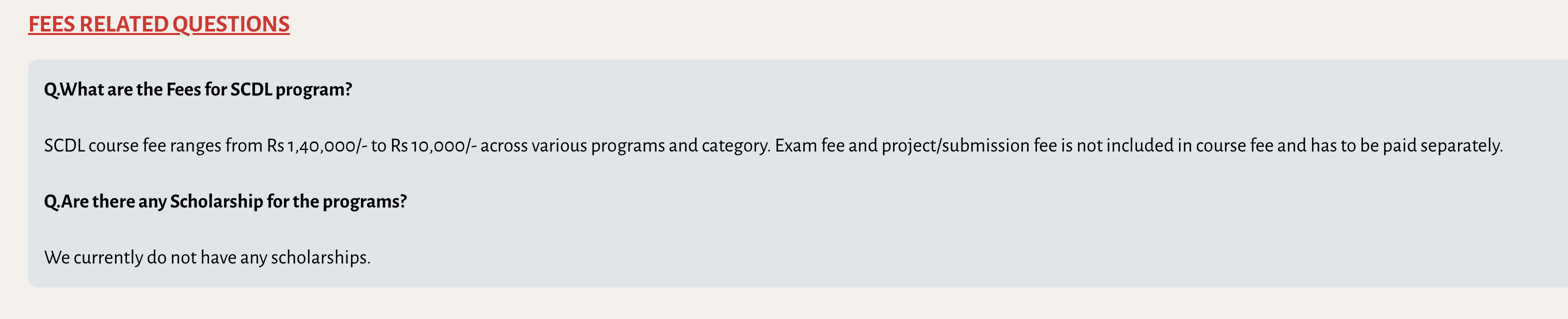
Layout 1 section layout is used to display the section content in a specialized layout which will display the title in primary color and with underline. Content is displayed in a box with rounded left corners and has a selected background color (can be edited in the section background color field).
Please refer to the below image for more details.
3. Layout 2
Section layout 2 is a special section with Image and Features.
Image is shown on the left side of the section, and features are shown on the right side of the section.

4. Layout 3
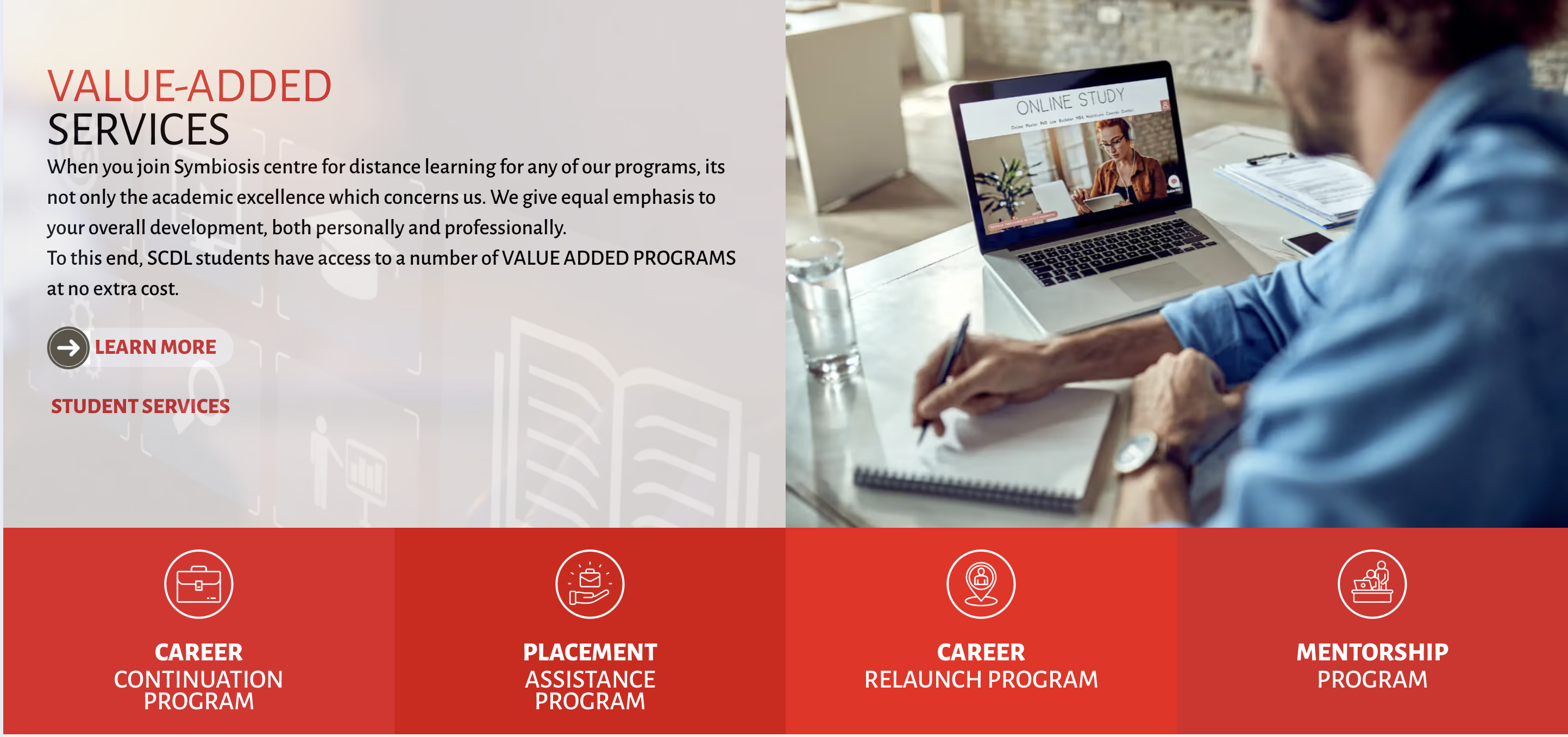
Section layout 3 is a special section with Image, Features, and content.
Section content is shown on the left side of the section, Image is shown on the right side of the section, and features are shown as grid on the bottom of the section.
Features can be edited in the section features field with Title, Content, and Icon please refer Section Editor for more details.
5. Layout 4
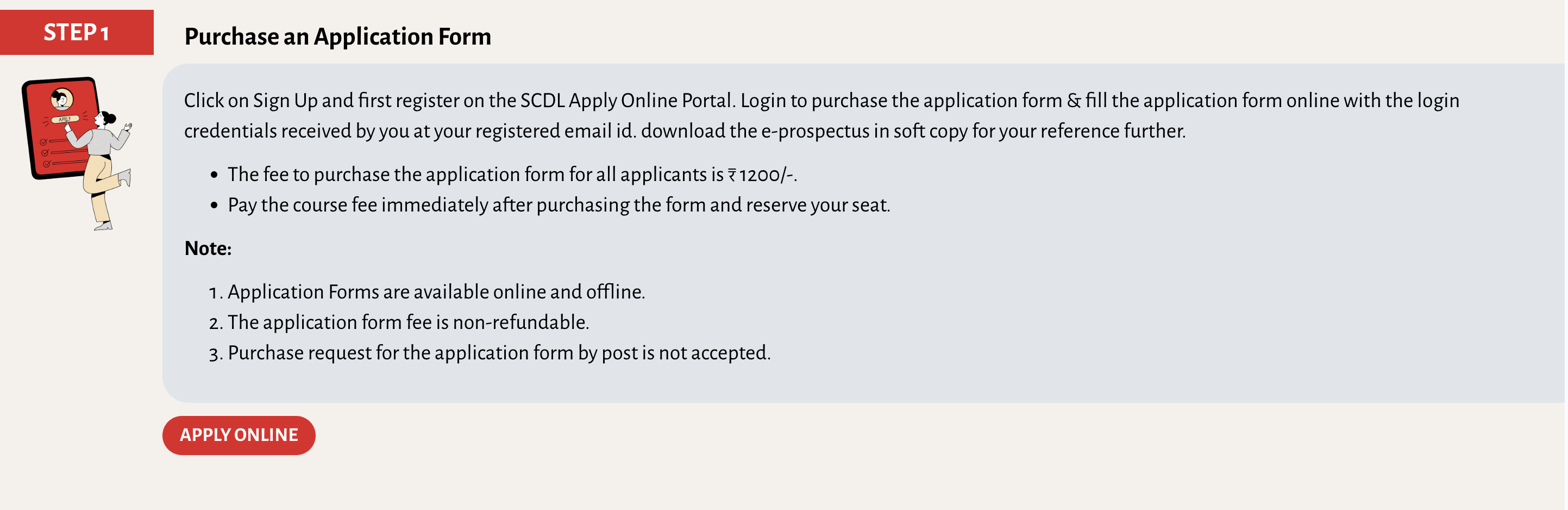
Section layout 4 is a special section with Title, Subtitle, Title Background Color, Title Text Color, Image, and Content.
As shown in the image below, Layout 3 has three rows
Row 1: Title, Subtitle, Title Background Color, Title Text Color
Row 2: Image, Content
Row 3: Menu Items
6. Directors Message
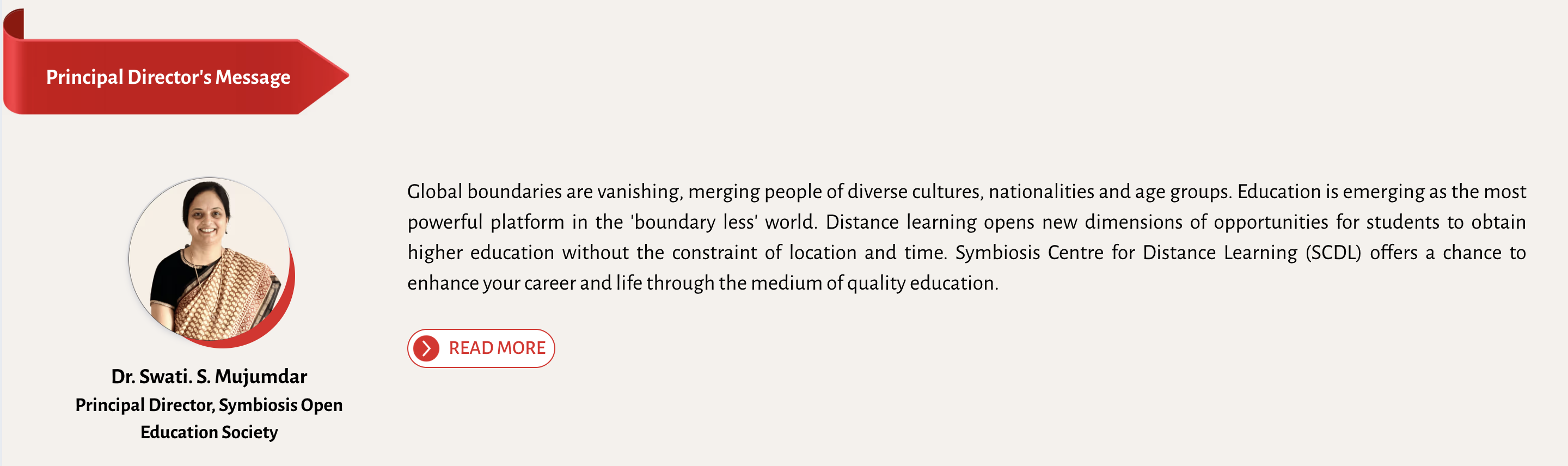
Directors' Message section layout is used to display the director's message in a specialized layout with title over the special background image, Section Image is treated as a director's photo and the short content.
The longer version of the content i.e., section content is displayed in a dialog box when the user clicks on the Read More button.
7. Features
Feature section layout is used to display the features in a specialized layout with features shown in a grid with Icon, Title and Content.
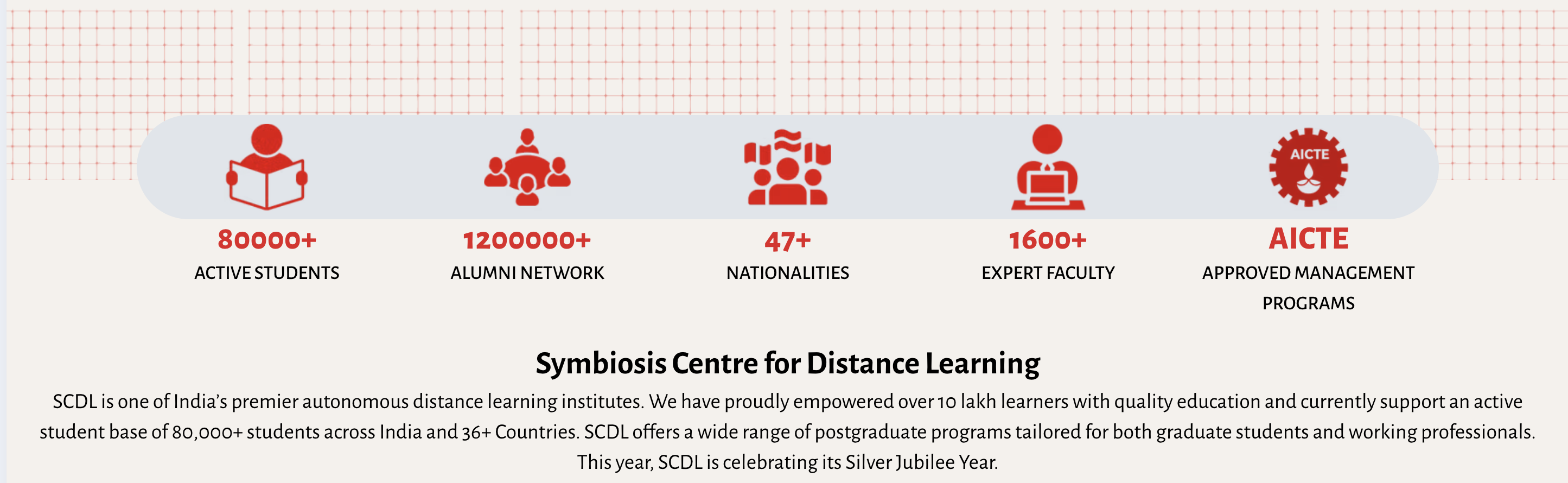
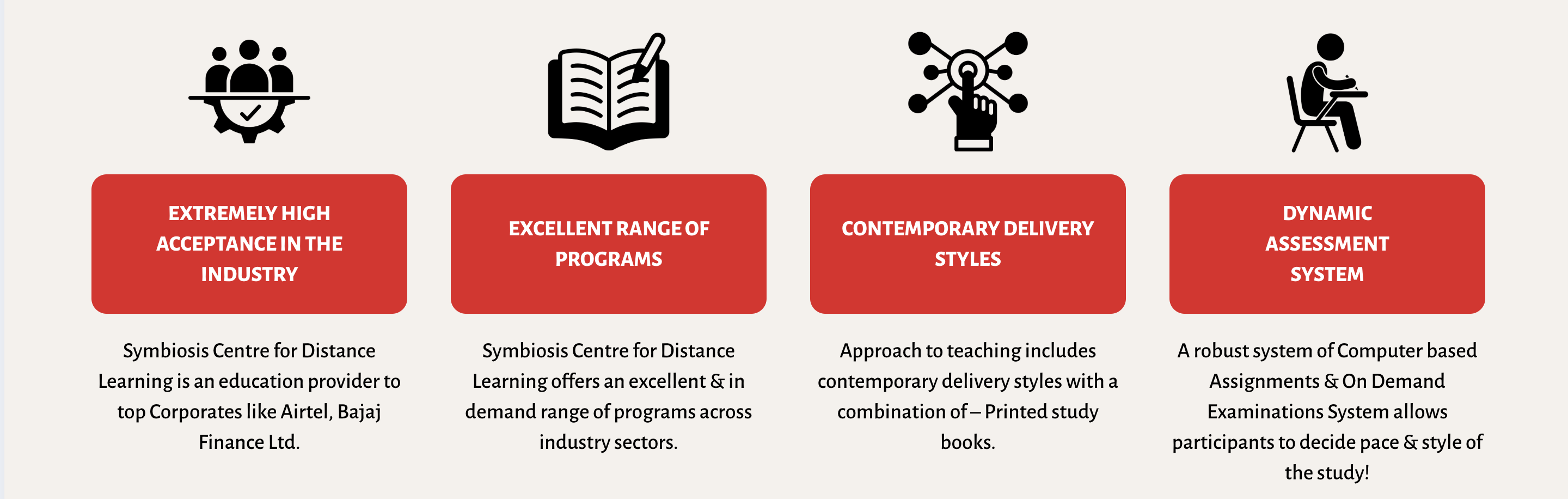
8. Features Four Column
Features section layout four column is used to display the features in a specialized layout with features shown in a grid with Icon, Title and Content.
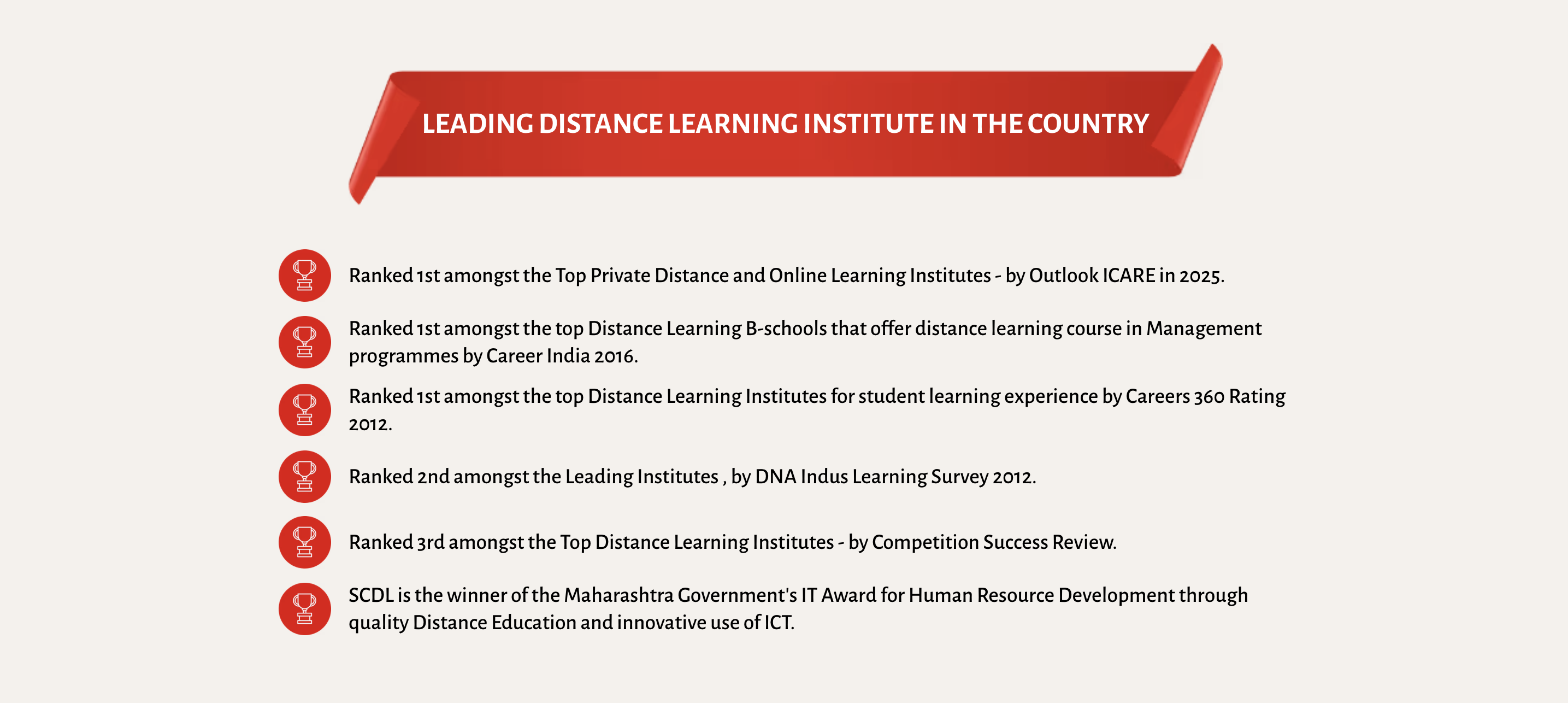
9. Features Special One Column
With this special section layout you can display the features in a specialized layout with features shown as a list Icon, Title and Content and title on a special background image.
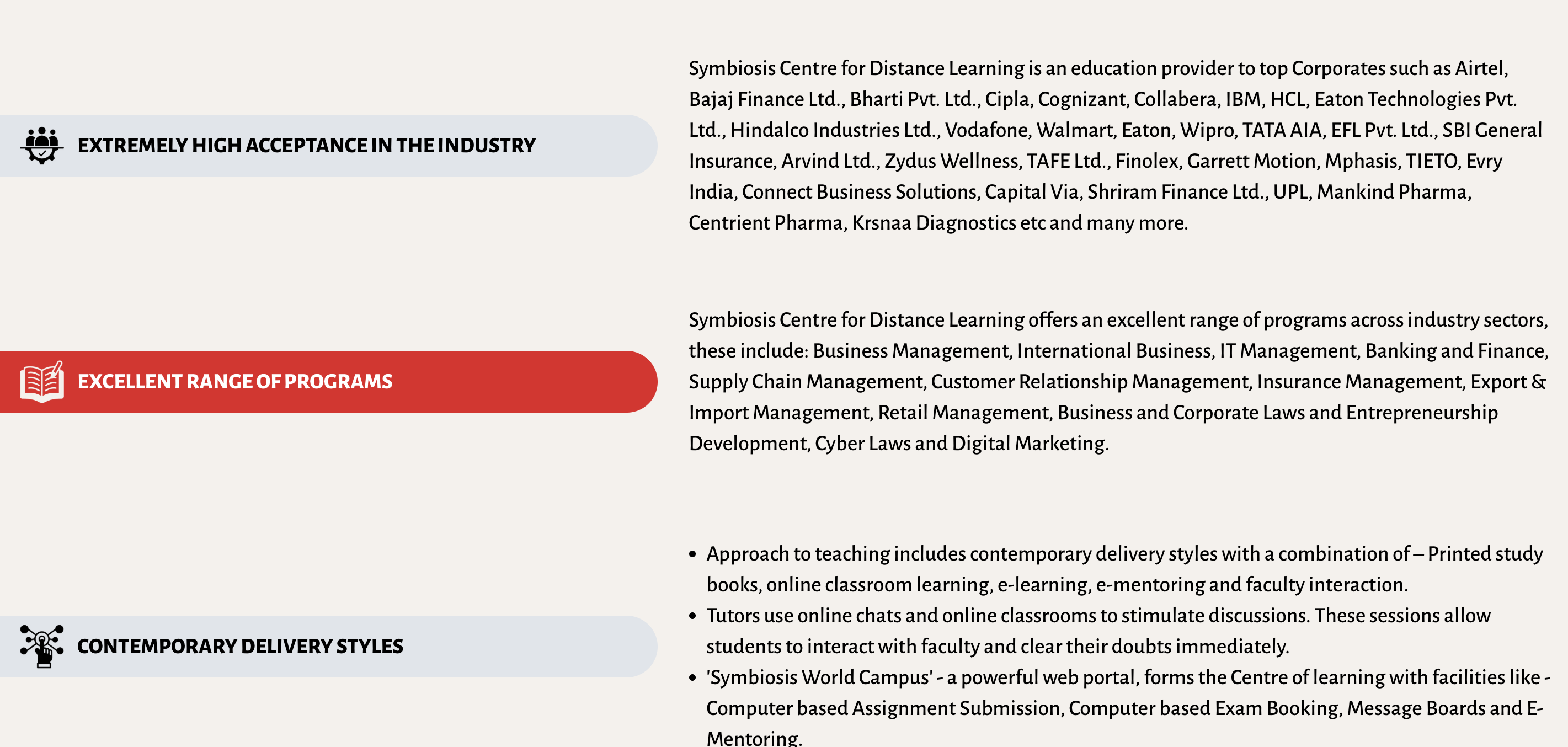
10. Features Special Two Columns
With this special section layout you can display the features as a list in a specialized layout with Icon and Title in the first column and Content in the second column.
11. Features Special Three Columns
With this special section layout you can display the features as a grid of three columns, with Icon, Title and Content in each column.
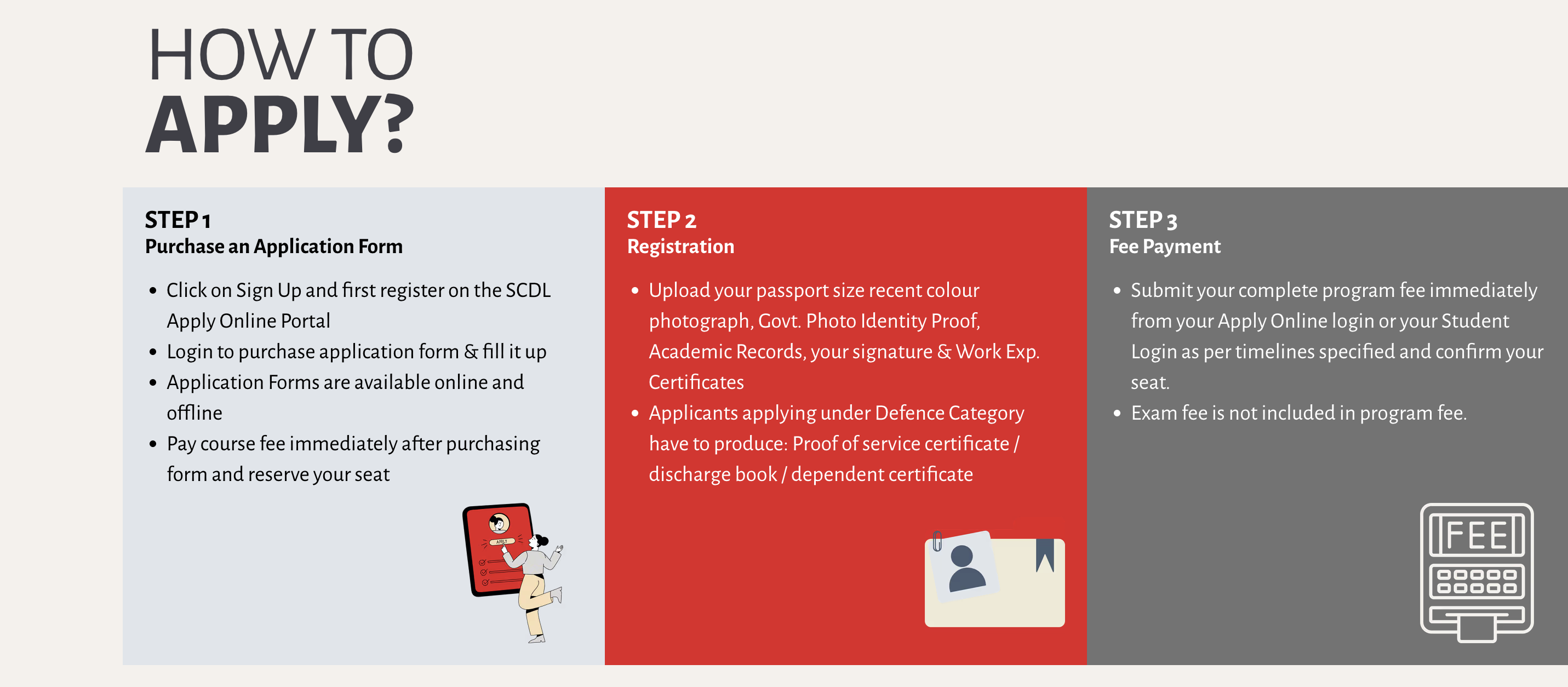
12. How to Apply
How to apply is a special section layout with a title, and content pulled from default how to apply steps configured in the settings.
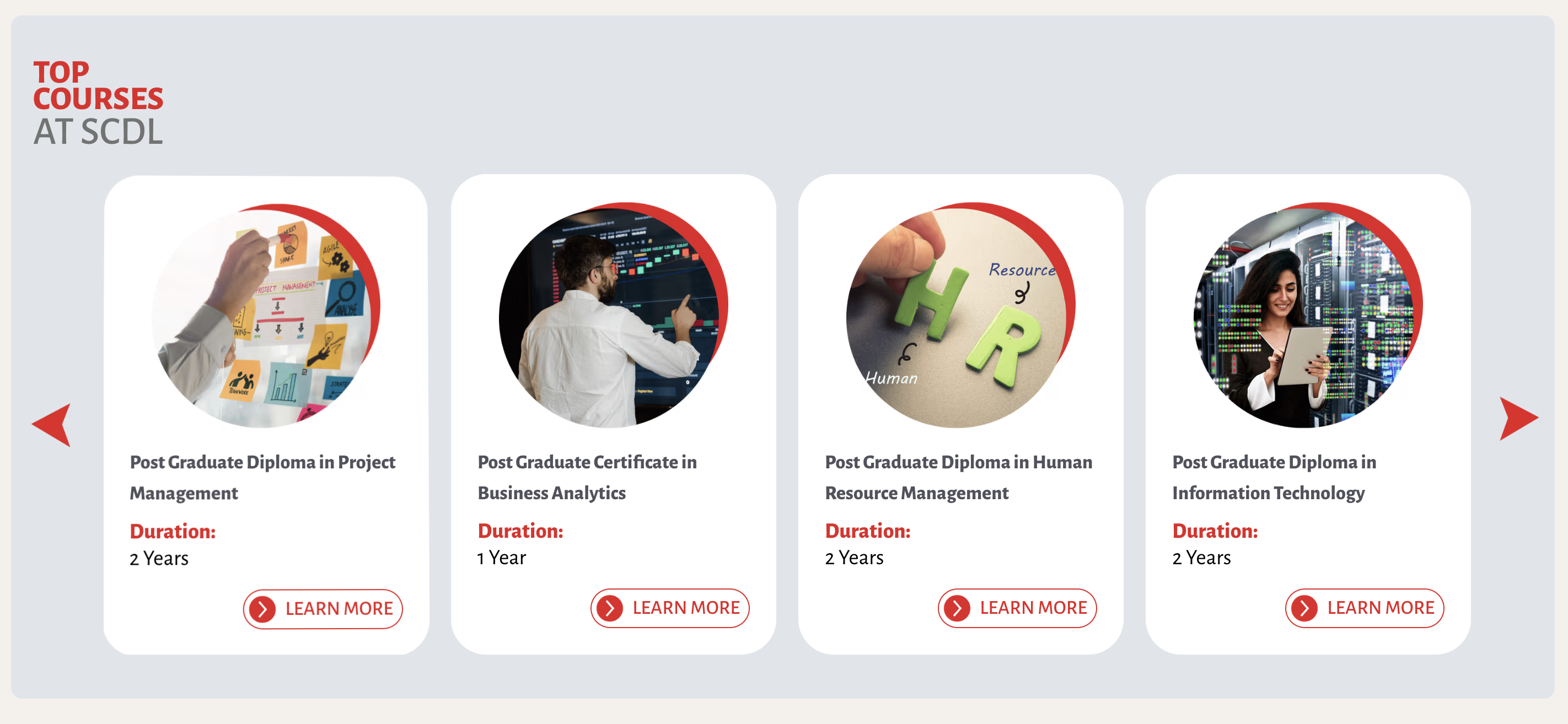
13. Top Courses
With this special section layout you can display the top courses in a slider with custom title.
You can configure top programs using multiselect dropdown in the editor.
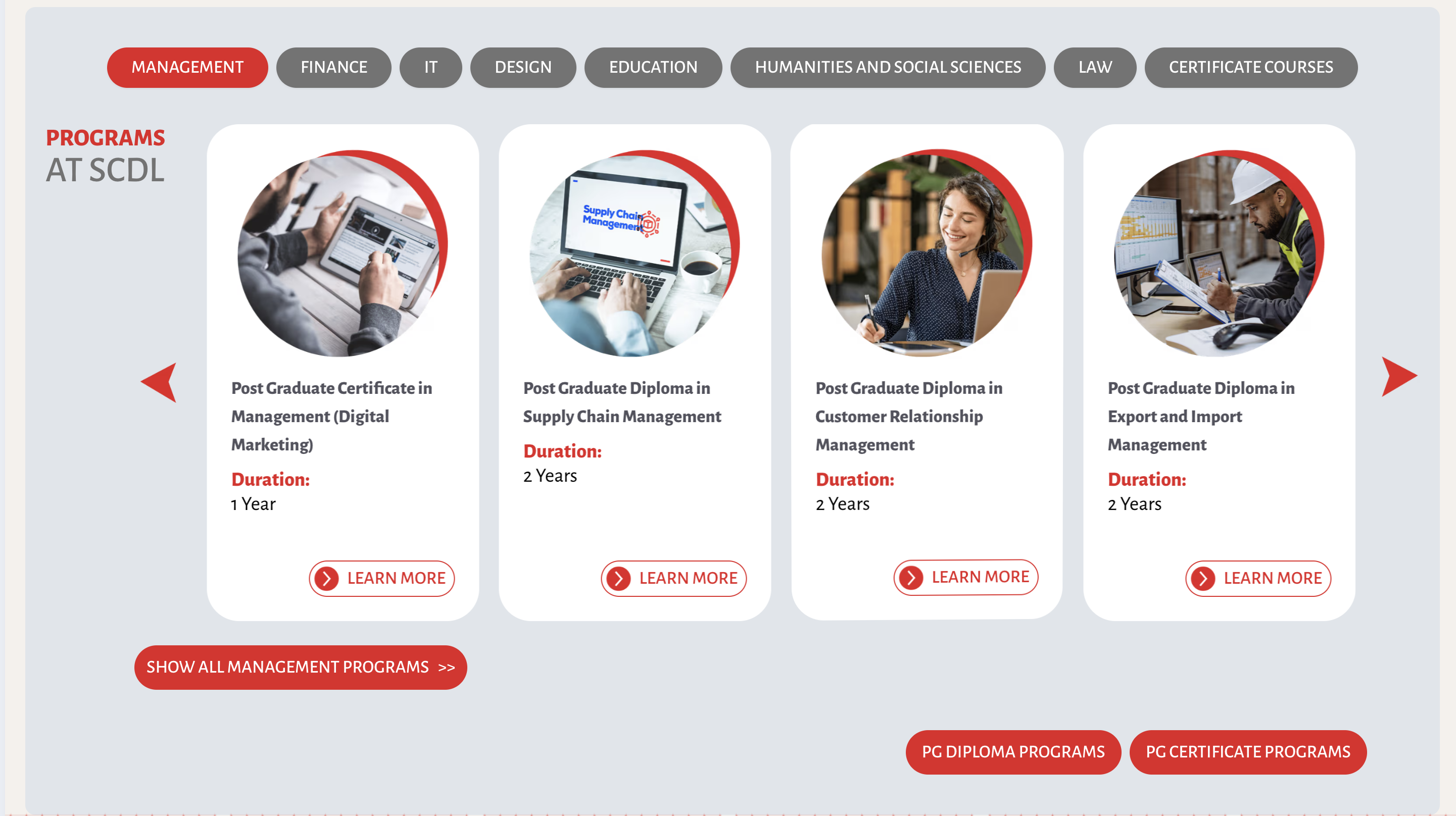
14. Top Categories
With this special section layout you can display the special component with top categories as a selection and program's slider as a content with a custom title.
You can configure top categories using multiselect dropdown in the editor.
You can also configure menu items which will be displayed as a part of the section at the bottom.
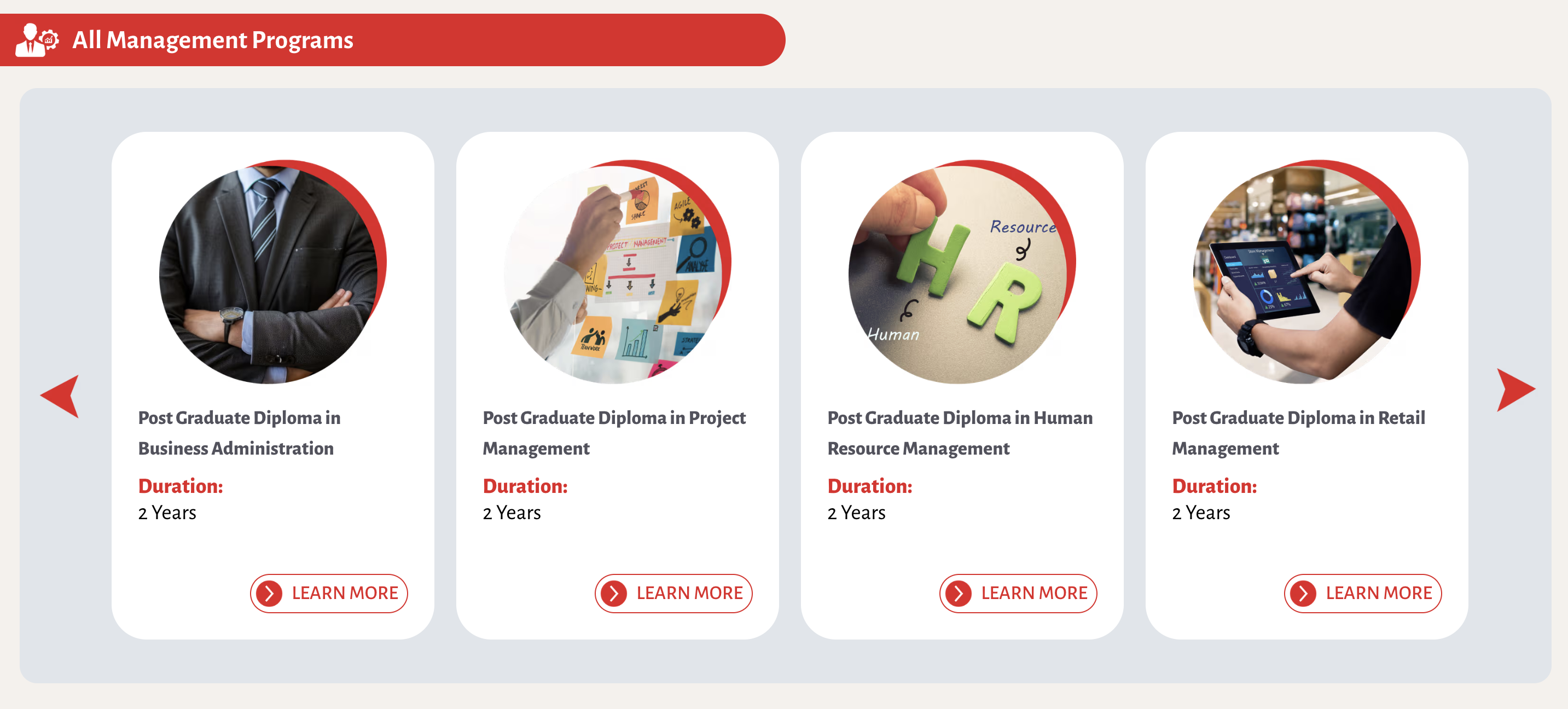
15. Category
With the Category section layout you can configure to display programs slider for a single category.
The Icon and Category name can be changed in Category Module
16. About Main
The About Main section will display the section title and content in a special layout with the title over the special background image.
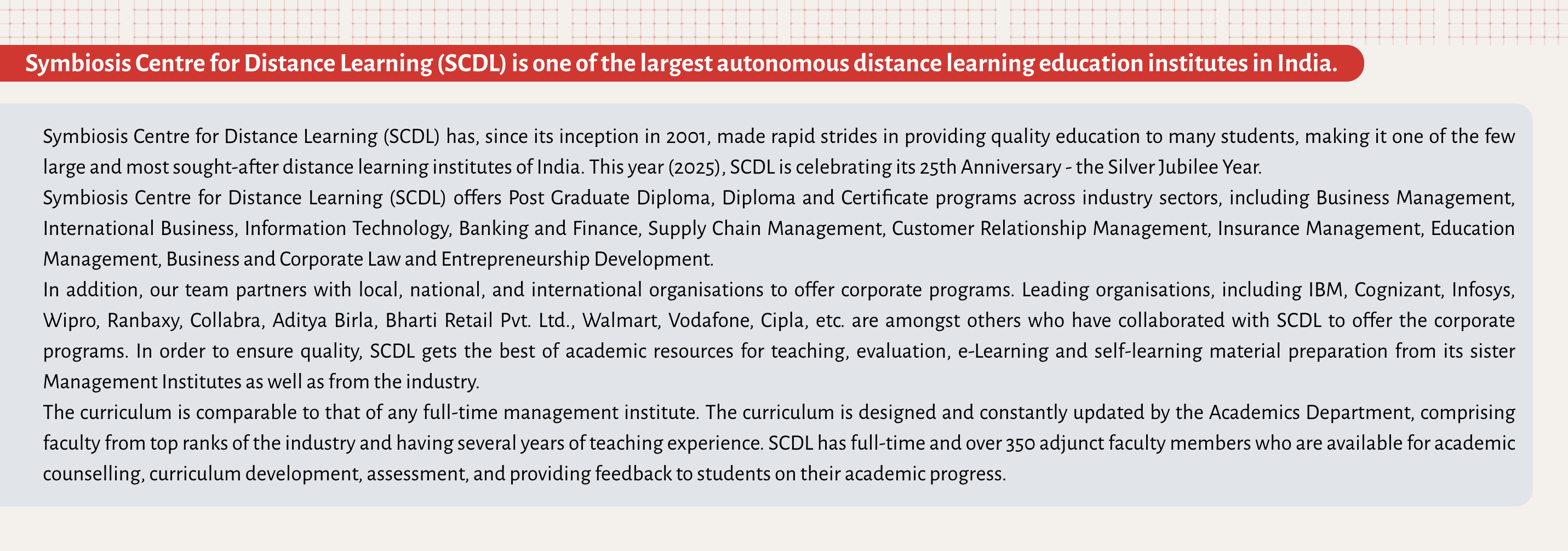
17. Rounded Right
With this section you can display the section title with selected background color and selected text color.
Section content will be displayed in the box with rounded right corners and a selected section background color.
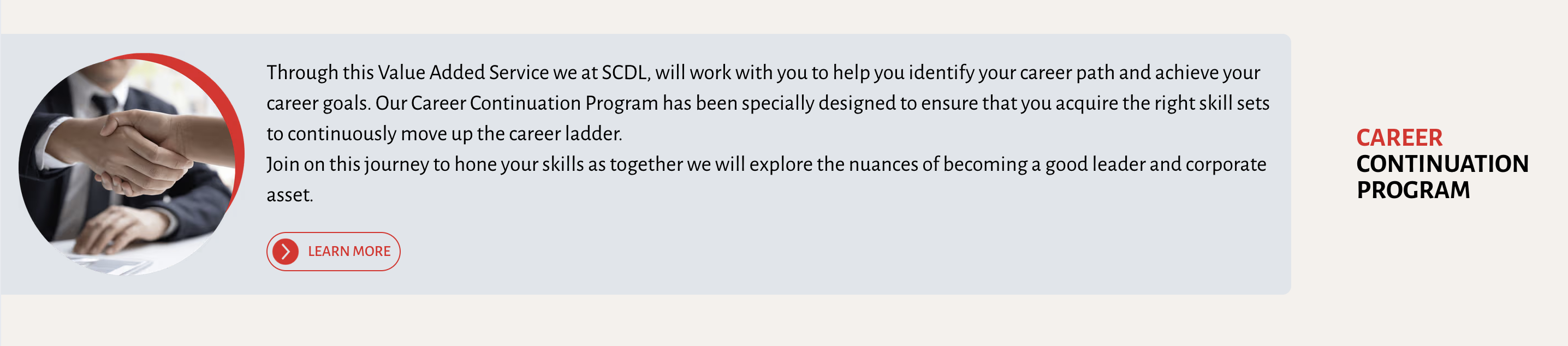
18. Value Added Services
Value Added Services section is specifically designed to display the value-added services on the value-added services page.
Although you can use this section to display any content of your choice, we recommend not using this section for other pages.
You can configure Learn More sections content by using the feature's field with Title, Icon, and Content editor.
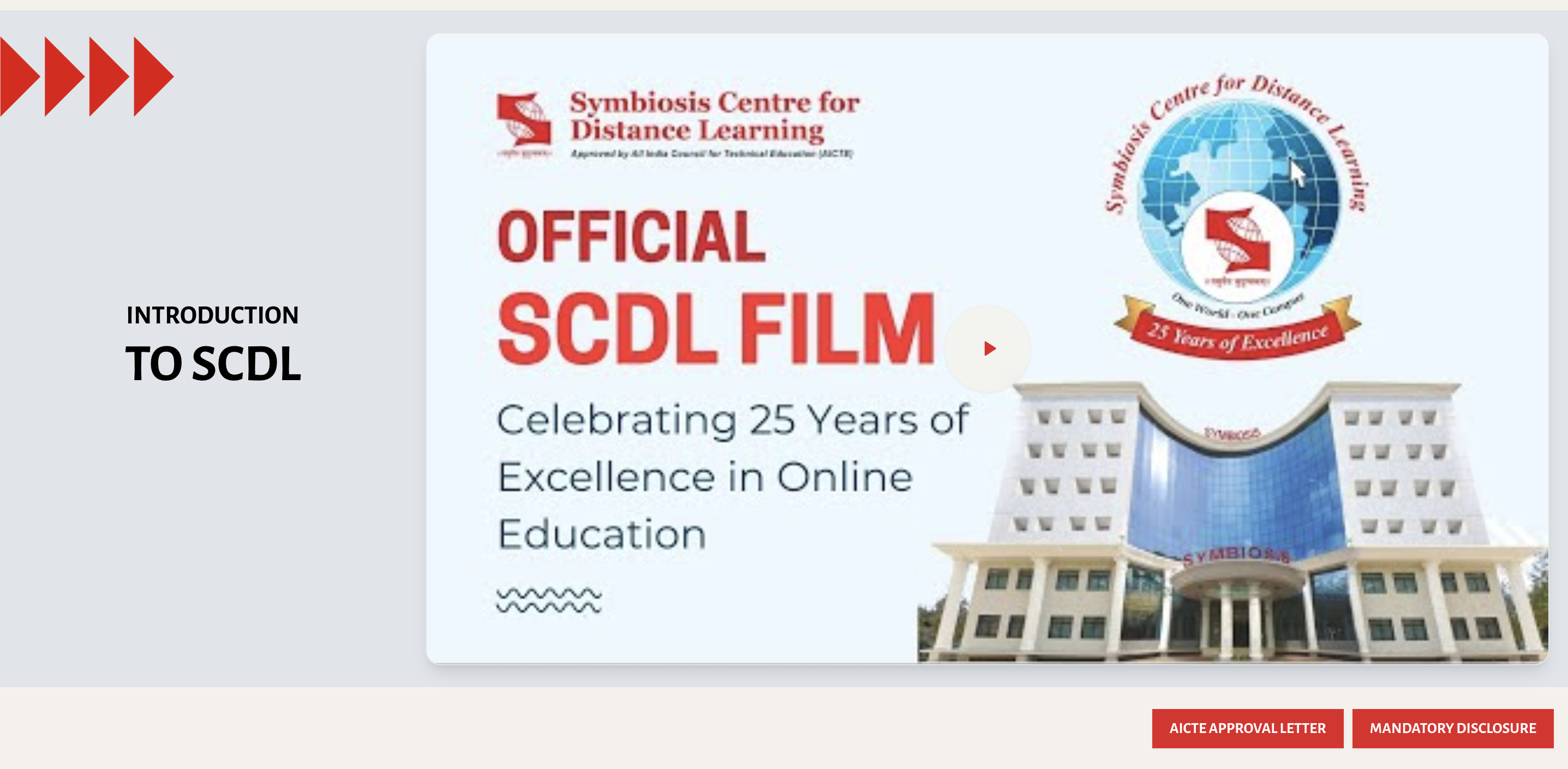
19. Video
Video section can be used to add video to the page. Video will be displayed in a special layout with a title over the special layout as shown in the image below.
You can configure the video id in the YouTube video id field.
Content on the left and menu items can also be configured using Page Sections Editor
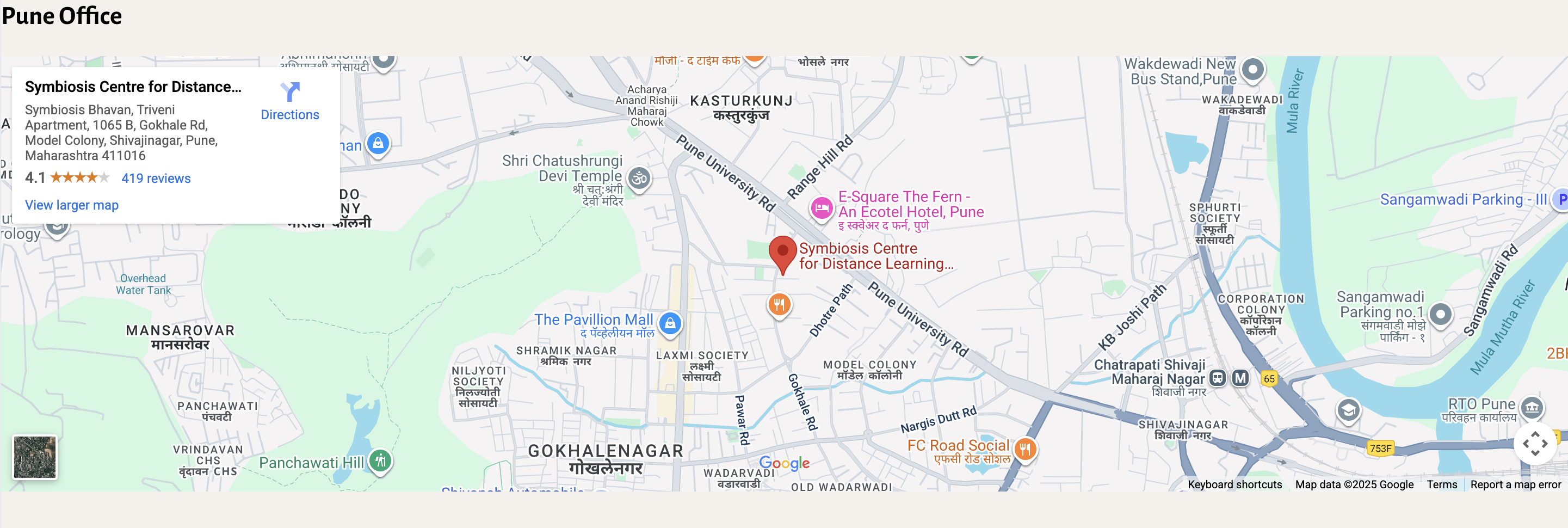
20. Google Map
Google Maps section can be used to add a Google map to the page. Google map will be displayed in a special layout with the title as simple text above the map.
You can configure the map url in the Map URL field.
Page and Page editor document concludes all the information about the page and page editor.
We have covered all the important information available at the time of writing this document on this page.
Using the page editor, you can create and edit the pages with ease.
Related Topics
Program editor is concluded with the related programs section. We also recommend you go though below references to learn more about the program editor.