Blogs
Blog is an important part of the website, and it is the main way to communicate with the users.
You can write new blog posts, edit existing ones, and delete them using the Blog Module.
This section will describe how to use the Blog Module to create, edit, and delete blog posts.
All Posts
When clicked on the Blogs menu in the sidebar you will be presented with all the all blogs screens.
All the posts will be listed here.
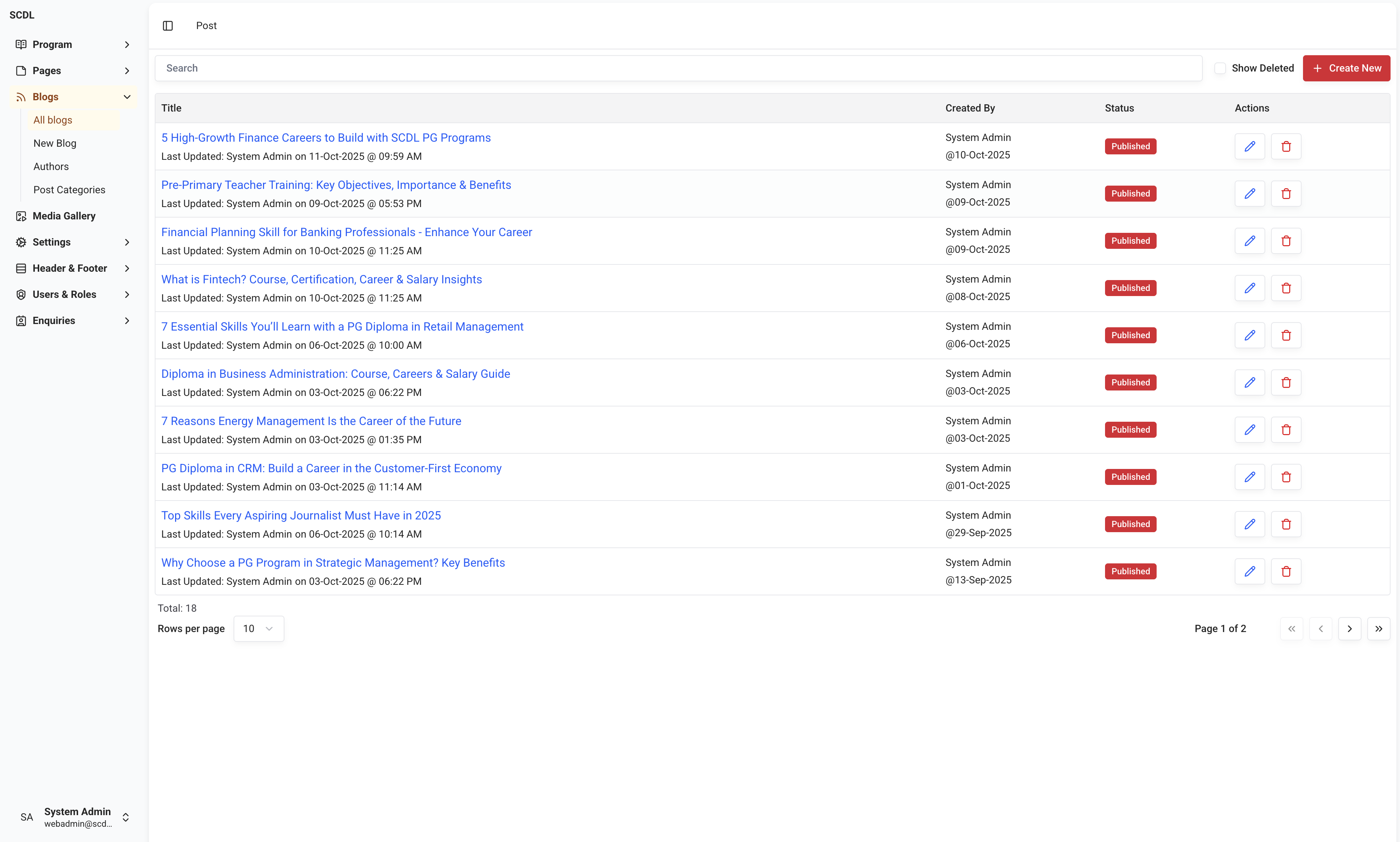
Title and other info | Created By | Status | Actions |
|---|---|---|---|
Post Title, Last modified by and date | Admin, Editor etc. | Published, Draft | Edit, Delete |
As described above, general Posts information is displayed in the first three columns, and actions are displayed in the last column.
In the searchbar above the table, you can search for Posts by title.
All the pagination-related information can be found below the table (e.g., Total items, items per page, page selection, etc.); data is paginated with 10 records per page by default, you can change the number of records per page by selecting the number from the dropdown.
Post Editor
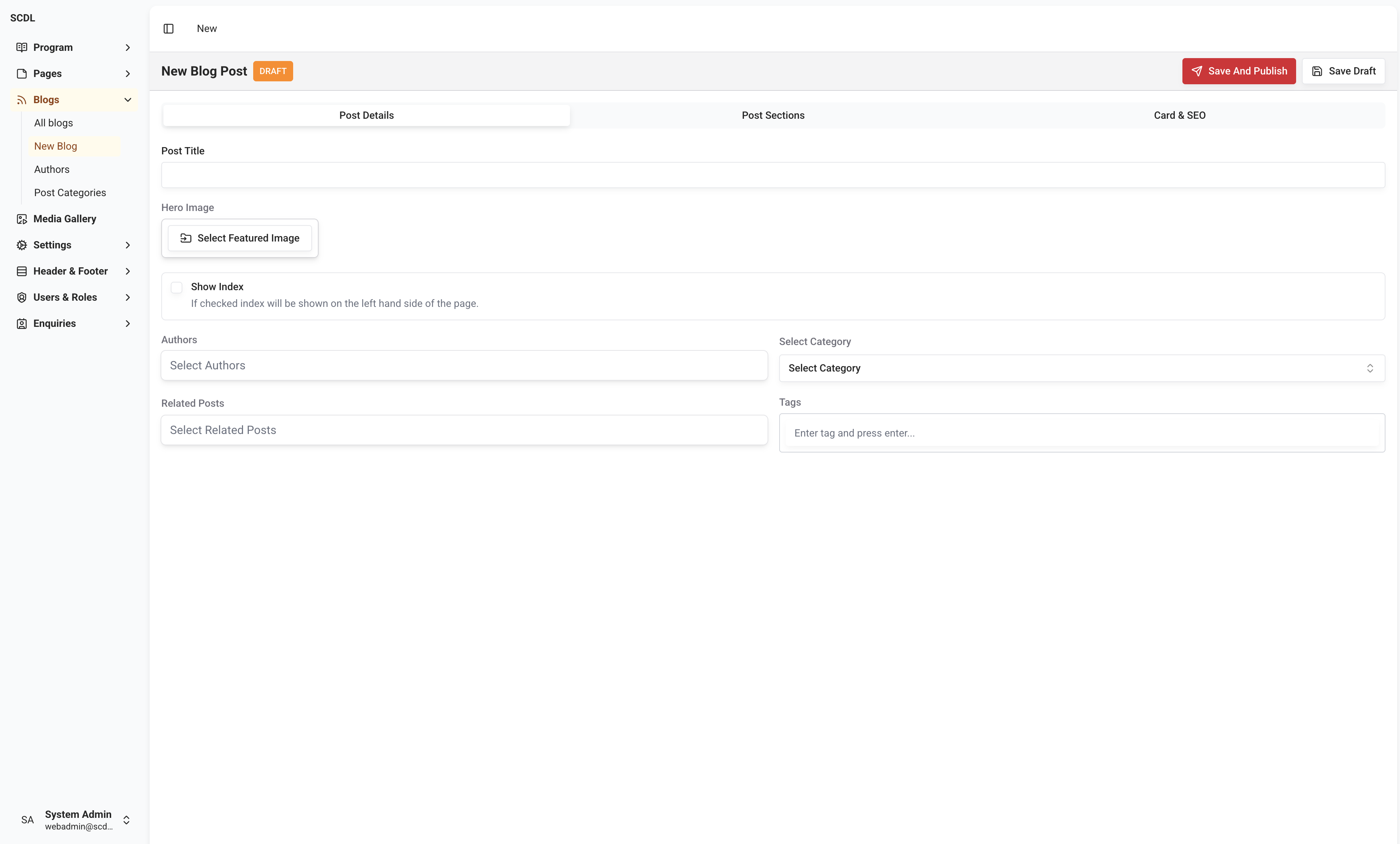
When you click on the Create New button or Edit menu option, you will be presented with the Post editor screen.
Post Editor—New Post
Blank Editor as above will be presented when you click on the Create New button.
Post Editor—Edit Post
When you click on the Edit menu option, you will be presented with the post-editor form prefilled with selected post-information.
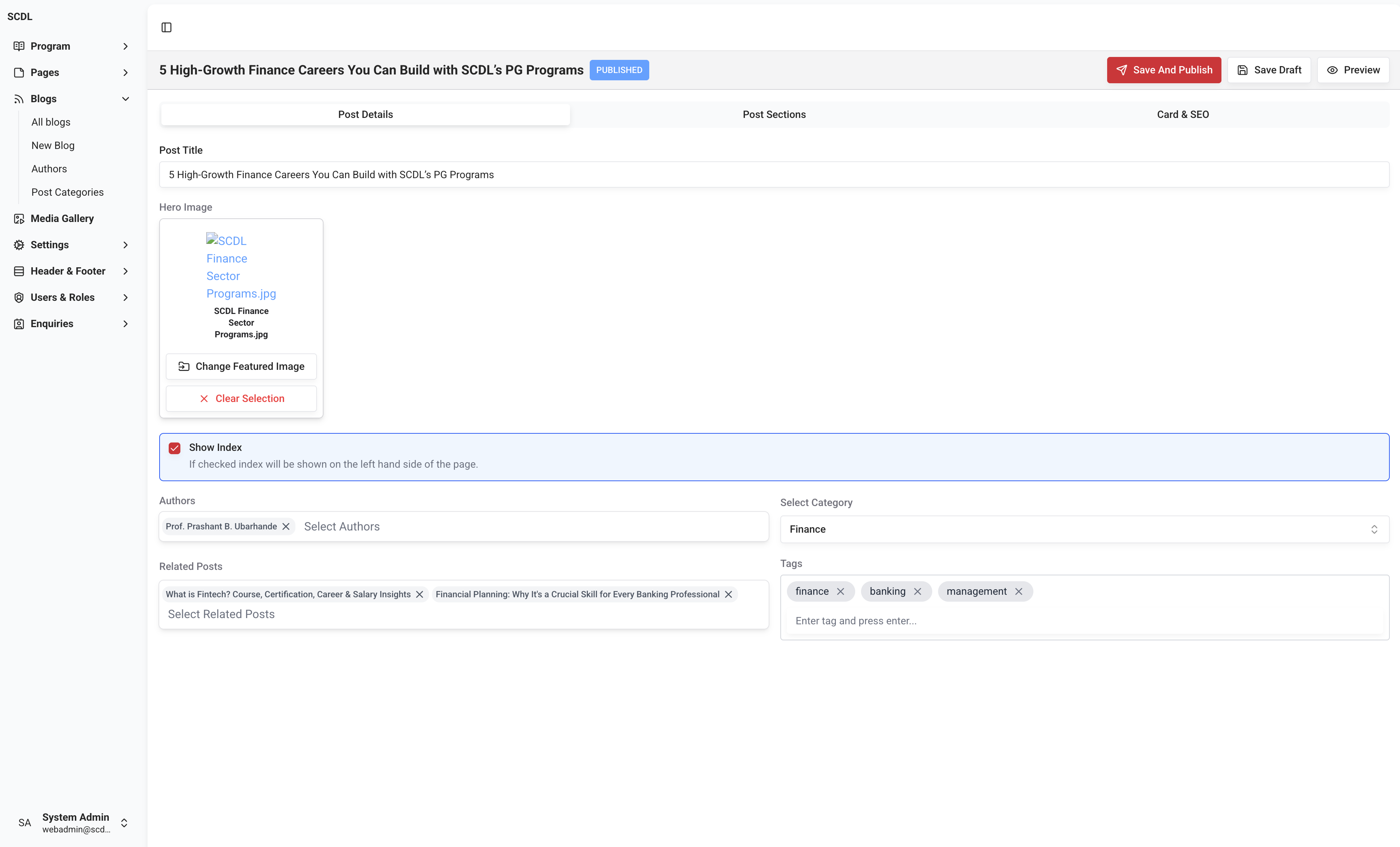
The Post Editor mainly is divided into four sections:
Top Bar:
Publish,Draftaction buttons are located in the top bar.Post Details: This section contains the primary details of the
Postsuch as Post Title, Hero Image, Post Category, Authors, etc.Post Sections: Sections of the
Postare displayed and can be edited or added in this section. You can create multiple sections for a post.Card and SEO: Card & SEO Details
Postare displayed and can be edited or added in this section.
Post-Details Editor
Post-Details has four selectable fields described as below:
Post Title: Title of the post (Required)
Hero Image: Hero section background image
Show Index: Show Index
Authors: Post Authors—Dropdown
Post Category: Post Category - Dropdown (Required)
Related Posts: Related Posts—Dropdown
Tags: Tags - Tags
Post-details are displayed on the top of the post-page with Hero Image on the right side of the container with rounded corners; On the left side of the container, Breadcrumbs, Post Title, Date Published | Author, Share Buttons are displayed.
You can change the Post details in the Post Details section.

Post Sections
Post-Sections Area can be structured in two ways.
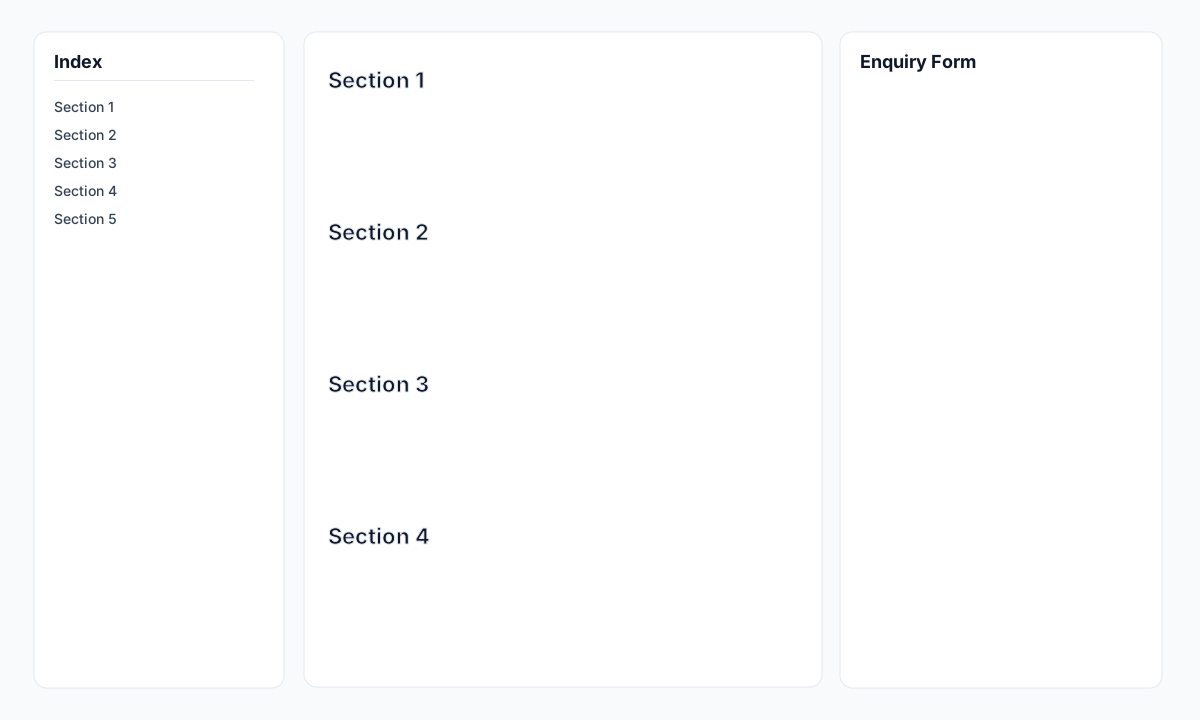
With Index: Index will be displayed on the left side of the post-page, and the content is displayed on the right side.
Without Index: All the sections will be displayed one after the other on the post-page.
You can check the Show Index checkbox to enable the index.
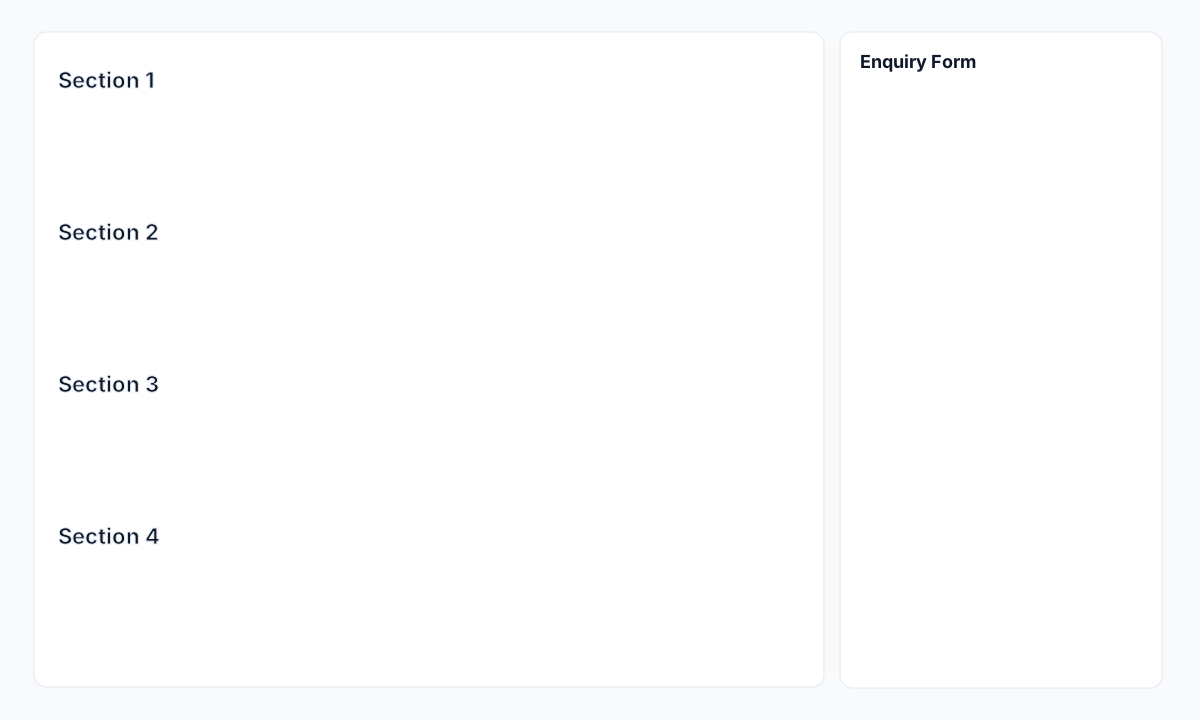
Below is the basic representation of the post-page structure with index enabled and disabled.
Post With Index
When the Show Index checkbox is selected, the index will be displayed on the left side of the post, and the content is displayed on the right side.
Post Without Index
When the Show Index checkbox is unselected, the index will be hidden and all the sections will be displayed one after the other on the post-page as shown in the image below.
Post-Sections View
Post-Sections Editor is used to add, edit, and delete sections of the post. You can add multiple sections to the post using this editor.
When the Post Sections tab is selected, you will be presented with the Post-Sections Editor.
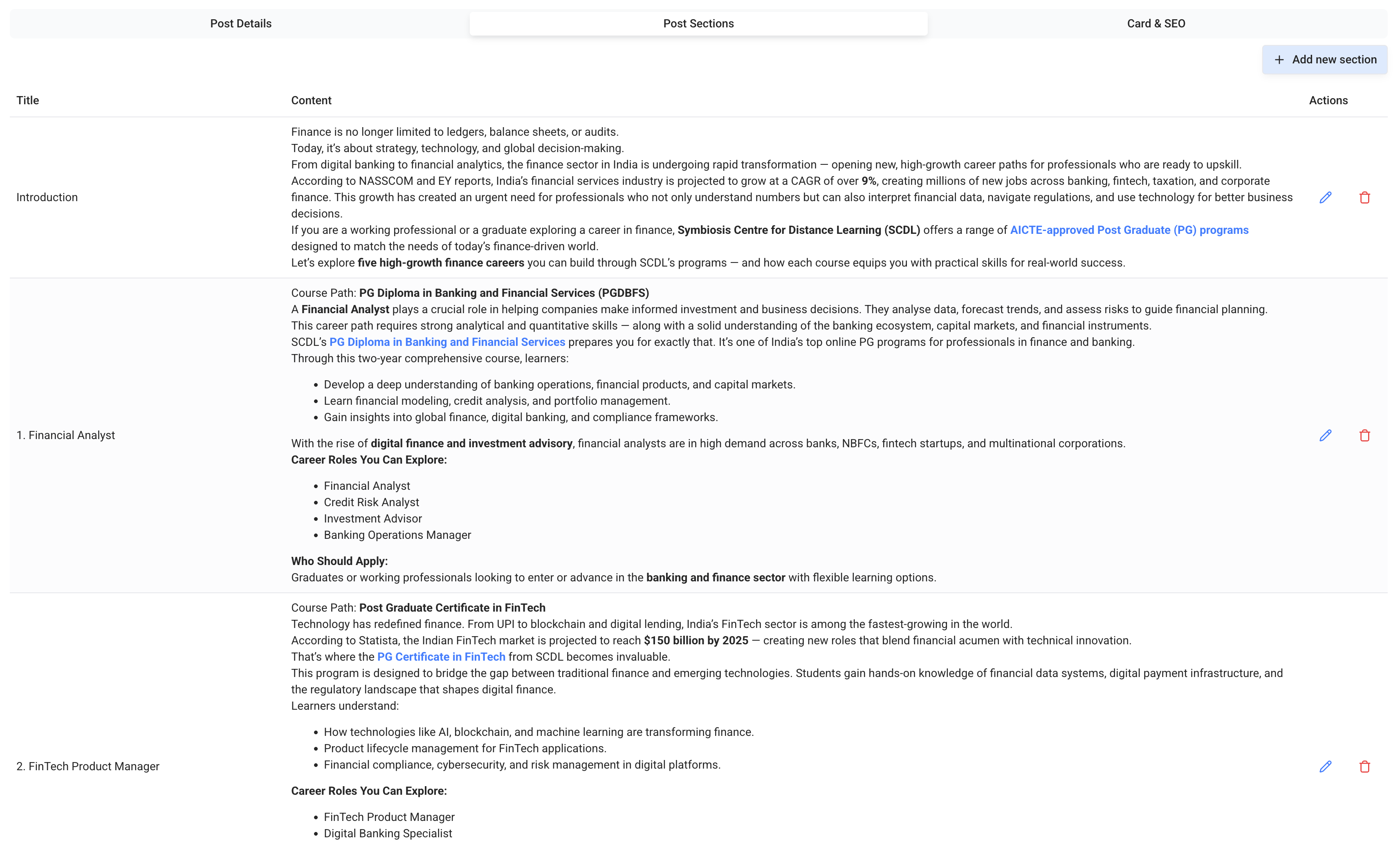
Title | Content | Actions |
|---|---|---|
Section Title | Section Content | Edit, Delete |
As described above, general Post Sections information is displayed in the first two columns, and actions are displayed in the last column.
You can add a new section by clicking on the Add New Section button or edit an existing section by clicking on the Edit menu item (Pencil Icon). If you want to delete a section, click on the Delete menu item (Trash Icon).
Post-Section Editor
When you click on the Add New Section button or Edit menu item, you will be presented with the Post-Section Editor.
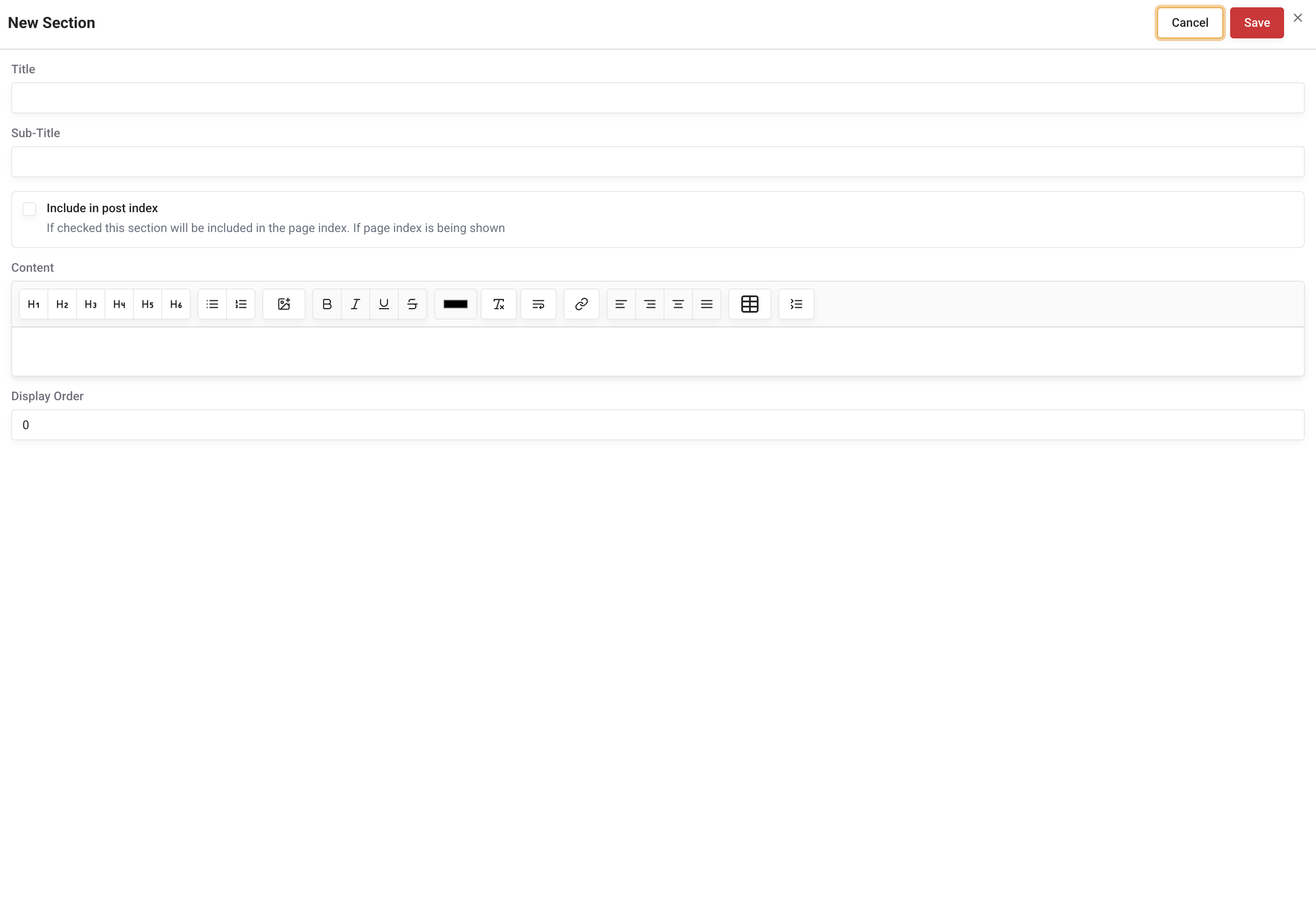
Post-section has the below fields:
Section Title: Title of the section.
Section Subtitle: Subtitle of the section.
Include in post index: Include this section in index on post-page or not.
Section Content: Content of the section.
Display Order: Display order of the section.
None of the fields are mandatory. If you create an empty section, it will display as a blank section.
We have provided the Rich Text Editor to edit the content of the section.
If you edit an existing section, the prefilled section editor will be presented with the selected section details.
Post Card & SEO Details
Card & SEO details section where all SEO and post-card related details are added/edited.
Card Details
Card Image: By default, the featured image is displayed if the card image is not set if you want to show different image for the post-card in slider this can set from here.
Card Title: Card Title for the post-card.
Card Short Description: Card Short Description for the post.
Time Read: Time read text for the post.
Frontend representation of the post-card is shown below.

SEO Details
We have included the SEO Details editor to manage SEO-related details of the post.
The below fields from SEO Details are automatically populated based on the post title.
Slug
Meta Title
The remaining fields can be edited by the user using SEO Details Editor.
Using the Publish and Draft action buttons, you can publish or draft the post.
You can create, edit, and delete as many posts as you want using the Blog Module.
Make sure to check the below-related topics to learn more about modules related to Blogs.